
PNP Payslip Online 2026: Complete Step-by-Step Guide to Check and Download Your Payslip
The PNP Payslip Online 2026 portal makes it easier for Philippine National Police (PNP) personnel to access their monthly salary information without relying only on printed payslip copies. Through the online payroll system, eligible personnel can review their basic salary, allowances, deductions, gross earnings, and net pay using an internet-connected device.
If you want to check your latest salary, review previous payslip records, or keep a digital copy for future reference, understanding how the PNP Payslip Portal works can save you time and unnecessary paperwork. This guide explains how to access your PNP payslip online, log in to your account, view salary details, and download or print an available copy.
Whether you are accessing the system for the first time or checking your monthly earnings, this step-by-step PNP Payslip Online guide will help you understand the process and resolve common access issues. Please remember to use the PNP-recommended portal address and confirm any login or security concerns with your unit’s finance office before entering your personal credentials.
What Is a PNP Payslip?
A PNP payslip is an official salary statement that provides Philippine National Police (PNP) personnel with a breakdown of their earnings for a particular pay period. It shows important salary information, including basic pay, allowances, deductions, and the final amount credited to an officer after all applicable adjustments.
Previously, police personnel generally relied on printed payslip copies provided through their respective units. This process could take time, and keeping physical records was not always convenient. With online payslip access, eligible PNP personnel can check their salary details more easily without depending entirely on paper documents.
Through the PNP Payslip Portal at payslip.pnppms.org, personnel can access available monthly salary records, review their earnings and deductions, and download or print a copy whenever needed. Having digital access also makes it easier to keep salary records for personal documentation and future reference.
Who Can Access the PNP Payslip Portal?
The PNP Payslip Portal is intended for active Philippine National Police (PNP) personnel who have a valid PNP ID number. If you are currently serving in the Philippine National Police, you can register for an account and use the online system to view your monthly salary details and available payslip records.
However, access may not be available to retired police officers or civilian employees through this portal. If you are a retired PNP officer and need a copy of your previous salary records, it is best to contact your former unit’s finance office directly for guidance and assistance.
How to Register for the PNP Payslip Portal Online
If you are accessing the PNP Payslip Portal for the first time, you may need to create an account before checking your monthly salary records. The PNP Payslip Online registration process is designed to help eligible Philippine National Police (PNP) personnel set up their accounts and access their payslip information conveniently.
Follow the steps below to understand how to register for the PNP Payslip Portal.
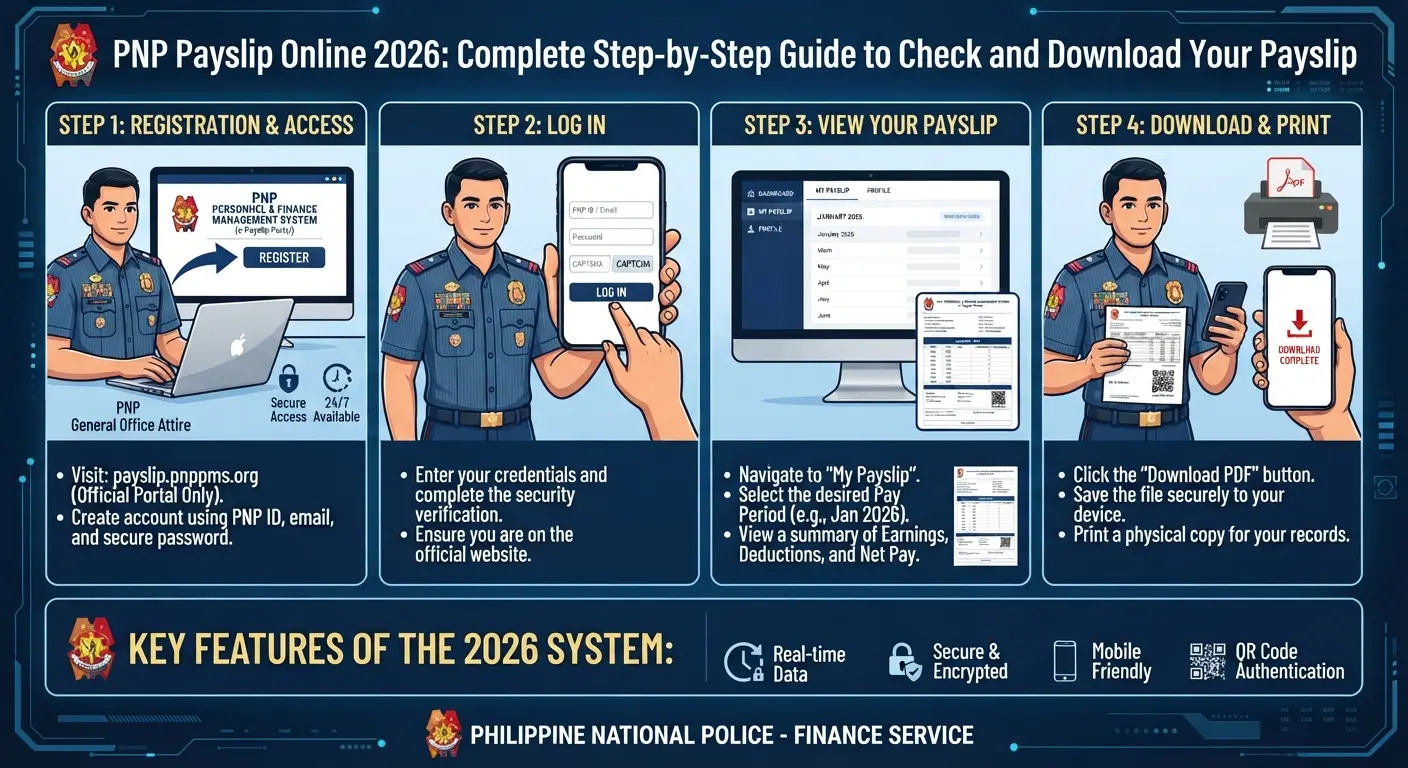
Step 1: Visit the Official PNP Payslip Website
Open your web browser and visit the PNP Payslip Portal at payslip.pnppms.org. Make sure you are using the correct website before entering any personal or employment information.
Step 2: Select the Registration or Sign-Up Option
Once the website loads, look for the Register, Registration, or Sign Up option on the homepage. Click it to open the account registration page and begin creating your online payslip account.
Step 3: Enter Your Personal Information
Complete the registration form by providing the requested details. These may include your full name, address, contact number, and valid PNP ID number. Check your information carefully before moving to the next step to avoid registration problems.
Step 4: Create a Strong Password
Choose a secure password to protect your PNP Payslip Portal account. For better security, use a combination of uppercase and lowercase letters, numbers, and special characters. Avoid using easily guessed information, such as your name or birthday, and never share your password with anyone.
Step 5: Submit Your Registration Form
After completing the required fields, review your details and submit the registration form. If the portal provides an email verification or activation process, check the email address associated with your registration for further instructions.
Step 6: Activate Your PNP Payslip Account
If you receive an account activation link, open the email and follow the instructions to activate your account. Once your registration is approved and your account is active, you can return to the PNP Payslip Portal and sign in using your registered credentials.
How to Log In to the PNP Payslip Portal Online
After completing your registration, you can use your account credentials to access the PNP Payslip Portal and check your monthly salary information. The PNP Payslip login process is simple and allows eligible Philippine National Police personnel to view their available payslip records online.
Follow these steps to log in to your PNP Payslip account:
Step 1: Visit the Official PNP Payslip Portal
Open your preferred web browser and visit the official PNP Payslip website at https://payslip.pnppms.org/. Wait for the login page to load before entering your account details.
Step 2: Enter Your PNP ID Number
On the login page, locate the username or identification field. Enter your registered PNP ID number or email address, depending on the login options provided by the portal. Make sure the information matches your registered account.
Step 3: Type Your Account Password
Enter the password you created during the PNP Payslip online registration process. Check for typing errors, including incorrect uppercase or lowercase letters, before continuing.
Step 4: Complete the CAPTCHA Verification
If a CAPTCHA security check appears, follow the instructions displayed on the screen. This verification helps protect the portal from automated login attempts and unauthorized access.
Step 5: Click the Login Button
After entering your credentials and completing the required verification, click the Login or Sign In button. If your account details are correct, you should be directed to your PNP Payslip dashboard, where you can access the available salary information and payslip records.
How to Access and View Your PNP Payslip Online
Once you have successfully logged in to your account, you can access your available salary records through the PNP Payslip Portal. The online system makes it easier for Philippine National Police (PNP) personnel to review their monthly earnings, check salary deductions, and keep track of previous pay periods.
If you want to know how to check your PNP payslip online, follow these simple steps:
Step 1: Find the Payslip Menu
After logging in, look at your account dashboard for an option labeled Payslip, e-Payslip, or a similar salary-related menu. This section is where your available monthly salary records may be displayed.
Step 2: Open the Payslip Section
Click the Payslip or e-Payslip option to access the salary records page. Depending on the portal layout, you may find different options for viewing your current and previous payslip information.
Step 3: Select Your Preferred Pay Period
Look for the available month or pay-period selection menu. Choose the specific month you want to review from the dropdown list. Make sure you select the correct period so you can view the corresponding salary information.
Step 4: View Your PNP Payslip
After selecting the desired pay period, click the View Payslip button if available. Your monthly salary statement should appear on the screen, showing relevant information such as basic salary, allowances, deductions, and net pay.
You can review the details directly online. If the portal provides these options, you may also download your PNP payslip as a PDF or print a physical copy for your personal records.
How to Print Your PNP Payslip Online
Having a printed copy of your PNP payslip can be useful when submitting salary documents for loan applications, official transactions, employment verification, or personal financial records. The PNP Payslip Portal makes it easier for eligible personnel to access their available salary statements and print a copy whenever necessary.
If you want to know how to print your PNP payslip online, follow these simple steps:
Step 1: Open the Payslip for Your Desired Month
Visit the PNP Payslip Portal at **https://payslip.pnppms.org/** and log in using your registered account credentials. Go to the payslip section and select the month or pay period you want to print. Open the corresponding salary statement to review its details.
Step 2: Select the Print or Download Option
Once your PNP payslip appears on the screen, look for the Print or Download button. If either option is available, click it to continue. Some portal versions may allow you to download the payslip directly or open a printable version.
Step 3: Save a PDF Copy for Backup
If you want to keep a digital copy, select the PDF download option when available. Choose a folder on your computer or mobile device and save the file. Keeping a PDF version of your monthly PNP payslip makes it easier to access and print again whenever needed.
Step 4: Print Your Saved PNP Payslip
Open the downloaded PDF file using a PDF reader or your browser. Press Ctrl + P on your computer or select the printer option from the menu. Choose your preferred printer, check the page layout and paper size, then click Print to get a physical copy.
What Is Inside a PNP Payslip?
A PNP payslip contains important information about a police officer’s employment details, monthly earnings, salary deductions, and final take-home pay. Understanding each section helps Philippine National Police (PNP) personnel review their salary accurately and identify any changes in their monthly compensation.
Generally, a PNP monthly payslip is divided into four main sections: employee information, earnings, deductions, and net salary. Here is what each section means.
1. Employee Information
The employee information section is usually displayed at the top of the PNP payslip. It contains personal and employment-related details that identify the officer and the salary period covered by the document.
Depending on the payslip format, this section may include:
- Full name of the employee
- PNP ID or badge number
- Rank or position
- Assigned unit or unit code
- Date of birth
- Date of entry into service
- Retirement date, if applicable
- Bank or account number (possibly masked)
- Covered month or pay period
Always check this information to make sure your employment details and identification records are correct.
2. Earnings
The earnings section shows the total compensation you receive before any deductions are applied. It includes your basic salary and other allowances or benefits you are eligible to receive based on your rank, position, and applicable government compensation rules.
Common PNP salary components may include:
- Basic Pay: Your regular monthly salary based on your rank and salary grade.
- Long Pay: Additional compensation based on qualifying years of service.
- PERA: Personnel Economic Relief Allowance provided under applicable government policies.
- Hazard Pay: Additional compensation for eligible personnel performing hazardous duties.
- Clothing Allowance: Financial assistance for authorized uniform-related expenses.
- Laundry Allowance: An allowance provided for eligible uniform maintenance expenses.
- Incentive Pay: Additional compensation available to qualified personnel under applicable rules.
- Quarter Allowance: An allowance provided when applicable under current compensation policies.
- Other Allowances: Any additional authorized benefits or compensation included in your salary.
The exact earnings listed on your PNP payslip may differ depending on your eligibility, assignment, rank, and current government compensation guidelines.
3. Deductions
The deductions section displays the amounts subtracted from your gross salary before your final take-home pay is calculated. These deductions may include mandatory government contributions, taxes, loan repayments, and other authorized payments.
Some common PNP payslip deductions include:
- PhilHealth Contributions: Payments for the Philippine Health Insurance Corporation.
- Pag-IBIG Contributions: Monthly contributions to the Home Development Mutual Fund.
- Withholding Tax: Applicable income tax deducted from your salary.
- GSIS or AFPSLAI Loan Payments: Scheduled loan repayments, where applicable.
- PSSLAI Contributions: Contributions or other authorized payments associated with PSSLAI.
- Other Authorized Deductions: Additional payments or adjustments recorded in your payroll.
Review this section whenever you check your monthly PNP payslip. If you notice an unfamiliar deduction or an incorrect amount, contact your unit’s finance or payroll office for clarification.
4. Net Salary
The net salary section shows the amount you actually receive after all applicable deductions have been subtracted from your total earnings.
Depending on the payroll format, your PNP payslip may display the first salary release, second salary release, and combined net take-home pay. These figures help you understand how your monthly compensation is distributed.
To calculate your net salary, the general formula is:
Net Salary = Total Earnings − Total Deductions
Checking this section allows you to compare your expected salary with the amount credited to your bank account. If there is a difference, review your earnings and deductions first, then contact the appropriate payroll office if you need further assistance.
Understanding Your PNP Payslip Deductions
When checking your PNP payslip online, you may notice several deductions listed alongside your salary and allowances. Some of these deductions are mandatory government contributions, while others may be related to savings programs, loan repayments, insurance, or cooperative memberships.
Understanding these deductions helps Philippine National Police (PNP) personnel know where their money goes and why certain amounts are taken from their monthly salary. Below are some common deductions you may encounter on your PNP monthly payslip.
1. PhilHealth
PhilHealth is the Philippine government’s national health insurance program. The contribution deducted from your salary helps fund healthcare benefits and medical services for qualified members and their dependents. The amount is generally based on applicable contribution rules.
2. Pag-IBIG Fund
The Pag-IBIG Fund, also known as the Home Development Mutual Fund (HDMF), provides savings and housing-related benefits to its members. Your monthly contribution helps build your savings and may qualify you for housing loans, short-term loans, and other available member services.
3. Withholding Tax
Withholding tax is the income tax deducted directly from your salary before payment. The amount depends on your taxable compensation, applicable tax rates, and available exemptions. This deduction helps ensure that your income tax obligations are paid regularly.
4. AFPSLAI
The Armed Forces and Police Savings and Loan Association, Inc. (AFPSLAI) provides savings and financial services to eligible military and police personnel. If you are an enrolled member, your payslip may include deductions for savings contributions or scheduled loan repayments.
5. PSSLAI
The Public Safety Savings and Loan Association, Inc. (PSSLAI) offers financial services to qualified public safety personnel, including members of the PNP. Depending on your membership and financial arrangements, deductions may cover savings contributions, loan payments, or other authorized charges.
6. PMSMBFI
PMSMBFI-related deductions may appear on your payslip if you are enrolled in an applicable membership, cooperative, or benefit program. These amounts may cover membership contributions, loan repayments, or other authorized payments, depending on your agreement.
7. SGTI
SGTI may appear as a deduction code associated with a particular cooperative, insurance arrangement, or group benefit program. The exact meaning and amount depend on the specific program in which you are enrolled. If you are unsure why it appears on your payslip, ask your finance office for clarification.
What Should You Do If You Notice an Incorrect Deduction?
It is important to review your PNP salary deductions regularly rather than overlooking unfamiliar amounts. If you notice a deduction you do not recognize, a duplicate payment, or an amount that seems incorrect, contact your unit’s finance or payroll office.
When reporting the issue, keep a copy of the affected monthly payslip and clearly identify the deduction you want to question. The finance office can help verify the transaction, explain the deduction code, and guide you through the appropriate correction process if necessary.
PNP Payslip Sample: Example of Salary, Earnings, and Deductions
If you are checking your PNP payslip online for the first time, looking at a sample salary statement can help you understand how your monthly earnings and deductions are presented. A typical PNP payslip includes your basic pay, additional allowances, government contributions, loan payments, and final take-home salary.
To make things easier, the following PNP payslip sample for the Philippines shows an example of how earnings, deductions, and net salary may appear on a monthly salary statement.
Keep in mind that these figures are provided for illustration only. Your actual PNP salary may vary depending on your rank, years of service, applicable allowances, loan obligations, and current compensation rates.
PNP Payslip Sample – Earnings
The earnings section shows the total amount you receive before deductions. It includes your basic salary and other applicable allowances.
| Earnings | Amount (PHP) |
|---|---|
| Basic Pay | ₱34,761.00 |
| Long Pay | ₱16,133.00 |
| PERA | ₱2,000.00 |
| Hazard Pay | ₱540.00 |
| Clothing Allowance | ₱200.00 |
| Total Earnings | ₱54,164.00 |
PNP Payslip Sample – Deductions
This section lists the amounts subtracted from your salary, including government contributions, taxes, loan payments, and other authorized deductions.
| Deductions | Amount (PHP) |
|---|---|
| PhilHealth | ₱477.96 |
| Pag-IBIG | ₱100.00 |
| Withholding Tax | ₱2,712.43 |
| AFPSLAI | ₱1,500.00 |
| PSSLAI | ₱8,000.00 |
| Other Deductions | ₱6,313.63 |
| Total Deductions | ₱19,104.02 |
PNP Payslip Sample – Net Pay Summary
After subtracting the total deductions from the earnings, the remaining amount represents the employee’s net salary. The example below also shows how the salary may be divided into two releases.
| Net Pay Summary | Amount (PHP) |
|---|---|
| First Salary Release | ₱19,779.00 |
| Second Salary Release | ₱19,780.98 |
| Net Take-Home Pay | ₱35,059.98 |
How to Calculate Your PNP Net Salary
You can estimate your take-home pay by subtracting your total deductions from your total earnings.
Formula:
Net Salary = Total Earnings − Total Deductions
Using the sample figures:
₱54,164.00 − ₱19,104.02 = ₱35,059.98
This means the example officer receives ₱35,059.98 after the listed deductions have been applied.
PNP Payslip QR Code and Account Number
The PNP digital payslip contains important details that help personnel manage their salary records and verify their payroll information. Two features worth understanding are the PNP Payslip QR Code and the PNP Payslip Account Number. Both may be useful when reviewing salary documents, handling financial transactions, or submitting payslips for official purposes.
PNP Payslip QR Code
A QR code may appear on your downloaded PNP payslip to support the verification of your salary document. When scanned using a compatible device or verification system, it may direct the authorized person to the corresponding record or verification details in the PNP payroll system.
This feature can help banks, employers, and other authorized offices check the authenticity of a payslip when it is submitted as a supporting document. It also helps reduce the risk of using altered or misleading salary records.
If you need to submit your PNP payslip for a bank loan, financial application, or official transaction, use the original downloaded document whenever possible. Make sure the QR code is clear and readable.
PNP Payslip Account Number
Your PNP payslip may also display an account number containing important banking or payroll identification details. According to the format described in your draft, the number consists of 16 digits divided into three parts:
- First Four Digits – Branch Code: Identifies the assigned branch.
- Next Four Digits – Scheme Code: Identifies the account type. The supplied format identifies 0001 as a savings account and 0002 as a salary account.
- Remaining Digits – Unique Identifier: Distinguishes your individual account within the system.
Understanding these numbers can help you recognize the account information displayed on your salary statement. However, the exact numbering structure should be confirmed with the PNP payroll or authorized banking office.
How to Reset Your PNP Payslip Password
If you have forgotten your login password or cannot access your account, you may need to reset your credentials before checking your monthly salary records.
The PNP Payslip password recovery process may allow registered users to regain access through their associated email address. If the password reset option is available on the portal, follow these steps.
Step 1: Click the Forgot Password Option
Visit the PNP Payslip Portal at **https://payslip.pnppms.org/** and open the login page. Look for the Forgot Password option, usually displayed near the password field, and click it to begin the recovery process.
Step 2: Enter Your Registered Email Address
On the password recovery page, provide the email address connected to your PNP Payslip account. Make sure you enter the correct email address because the recovery instructions may be sent to this registered account.
Step 3: Check Your Email Inbox
After submitting your email address, open your inbox and look for a password reset message from the portal. If the message does not appear, check your spam or junk folder as well. Follow the instructions provided in the email if a reset link is sent.
Step 4: Create a New Password
Open the password reset link and follow the instructions on the page. Enter a new, secure password and confirm it if required. Choose a password that is difficult to guess and avoid reusing your previous credentials.
Step 5: Log In Using Your New Password
Once your password has been successfully updated, return to the PNP Payslip login page. Enter your registered login details and your new password to access your account and view your available payslip records.
What If You Cannot Access Your Registered Email?
Sometimes, PNP personnel lose access to the email address they originally used during registration. This can make password recovery difficult because the reset instructions may be sent to an email account they can no longer open.
If this happens, contact your unit’s finance or authorized payroll office and explain your situation. Ask for guidance on updating your registered email address or recovering your account.
According to the procedure described in your draft, email changes cannot be completed directly through the online portal. Therefore, contacting the appropriate office is the recommended next step rather than attempting to create another account.
Security Reminder: Never share your PNP ID, password, account number, or password reset link with unauthorized individuals. Always use the official portal and protect your salary information.
Common PNP Payslip Login Problems and How to Fix Them
Sometimes, Philippine National Police (PNP) personnel experience difficulties when trying to access their accounts through the PNP Payslip Portal. These problems may occur because of incorrect login details, account restrictions, browser issues, or delays in receiving verification emails.
If you are having trouble with your PNP Payslip login, there are several simple troubleshooting steps you can try before contacting your unit’s finance office. Below are some common PNP Payslip Portal problems and possible solutions.
1. PNP Payslip Account Is Locked
Your account may become temporarily locked after several unsuccessful login attempts. This security measure helps protect your salary information from unauthorized access.
If this happens, avoid repeatedly entering different passwords. Wait for the period specified by the portal before trying again. You can also use the Forgot Password option, if available, to reset your login credentials and regain access.
2. PNP Payslip Website Is Not Loading
Sometimes, the PNP Payslip website may take longer than usual to open or display an error message. This can happen because of a slow internet connection, browser-related problems, or temporary server issues.
Try these troubleshooting tips:
- Check whether your internet connection is working properly.
- Clear your browser’s cache and cookies.
- Refresh the PNP Payslip login page.
- Try opening the website using another browser, such as Google Chrome or Mozilla Firefox.
- Access the portal again after some time if the website is temporarily unavailable.
If the problem continues, contact the appropriate technical support or your unit’s finance office.
3. PNP Payslip Activation Email Is Not Arriving
If you have recently registered but have not received an account activation email, check your inbox carefully. Sometimes, automated messages are filtered into the spam, junk, or promotions folder.
Make sure you entered the correct email address during registration. If the portal provides an option to resend the activation message, you can request another link and follow the instructions provided.
If you still cannot activate your account, ask your unit’s authorized personnel for assistance.
4. PNP Payslip Login Fails Even With the Correct Password
Entering the correct password does not always guarantee successful access. A small mistake in your username, PNP ID, or password can prevent you from logging in.
Before trying again, check the following:
- Make sure you are entering the correct PNP ID number.
- Check whether you are using the correct registered email address, if supported.
- Turn off Caps Lock if your password contains lowercase letters.
- Check for extra spaces before or after your login details.
- Make sure you are using the password associated with your registered account.
If your login continues to fail, try resetting your password or contact your payroll office for further guidance.
5. Forgot the Email Address Used During Registration
If you cannot remember which email address you used to create your PNP Payslip account, recovering your account may become difficult. This is especially important when the portal requires email verification or sends password reset instructions to your registered address.
In this situation, contact your unit’s finance or authorized payroll office. Explain that you have forgotten your registered email address and need help verifying your account information.
Avoid creating another account using different details unless the authorized office instructs you to do so.
Helpful Tips to Avoid PNP Payslip Login Problems
To make accessing your PNP Payslip account easier, keep these simple practices in mind:
- Save your correct login details in a secure password manager.
- Use a stable internet connection when accessing the portal.
- Keep your browser updated.
- Never share your PNP ID or account password with unauthorized individuals.
- Download important payslip records and store them securely.
- Contact your unit’s finance office if an account problem cannot be resolved.
By following these steps, you can troubleshoot common PNP Payslip login issues and access your available salary records more easily.
How to Enable Two-Factor Authentication (2FA) on Your PNP Payslip Account
Keeping your PNP Payslip account secure is important because it contains personal employment and financial information. One way to add extra protection is through Two-Factor Authentication (2FA), which provides an additional verification step when accessing your account.
If the PNP Payslip Portal supports this feature, you may be able to connect an authenticator application, such as Google Authenticator, to your account. This means you will need more than just your password to complete the login process.
Follow these steps to understand how to enable two-factor authentication:
Step 1: Open Your Account Security Settings
Visit the PNP Payslip Portal and log in using your registered credentials. Once you reach your dashboard, look for the Security Settings or account security section, if available.
Step 2: Find the Two-Factor Authentication Option
Check whether your account settings include a Two-Factor Authentication (2FA) option. If the feature is available, select it and follow the instructions displayed on the screen to begin the setup process.
Step 3: Install Google Authenticator
If the portal supports authenticator applications, download Google Authenticator from the official Google Play Store or Apple App Store.
This application generates temporary verification codes that can be used as an additional security step when signing in to supported accounts.
Step 4: Scan the QR Code
If the portal displays a QR code during the 2FA setup process, open Google Authenticator on your phone and use its scanning feature to connect your account.
After successful setup, the application should generate a temporary verification code that changes periodically, usually every 30 seconds.
Step 5: Enter the Verification Code
If two-factor authentication is successfully activated, you may be asked to enter the verification code from your authenticator application when logging in.
Enter the current code in the required field to complete the additional security check.
Step 6: Confirm That Two-Factor Authentication Works
Once the setup is complete, follow the portal’s instructions to verify your security settings. If appropriate, sign out and sign in again to check whether the additional verification step is working.
With 2FA enabled, your account receives an extra layer of protection because someone who knows your password may still be unable to sign in without the required verification code.
Security Tip: Never share your authentication codes or QR setup information with anyone. Keep your phone secure and follow the portal’s recovery instructions if you lose access to your authenticator application.
Important: The steps above describe a standard authenticator-app setup. Confirm that the current PNP Payslip Portal actually supports Google Authenticator and 2FA before publishing these instructions as an available portal feature.
Benefits of the PNP Online Payslip System
The PNP Online Payslip System provides a convenient way for eligible Philippine National Police personnel to manage and review their salary information digitally. Instead of depending entirely on printed salary statements, personnel can access available payslip records through the online portal.
Here are some of the main benefits of using an online payslip system.
| Benefits | What It Means for PNP Personnel |
|---|---|
| 24/7 Online Access | Check available payslip records whenever you need them, subject to portal availability and maintenance. |
| Digital Record Keeping | Keep downloaded payslip copies on your device instead of relying only on printed documents. |
| Organized Salary Information | Review your basic salary, allowances, deductions, and net take-home pay in one document. |
| Access to Previous Payslips | View available salary statements from earlier pay periods whenever you need them. |
| Free Portal Access | Access the online system without a separate portal usage fee, subject to official portal policies. |
| QR Code Verification | If supported, a QR code can help authorized organizations verify the authenticity of a downloaded payslip. |
Why Is the PNP Online Payslip System Useful?
Having online access to your salary statement makes it easier to monitor monthly earnings and keep important financial documents organized. You can review your salary details, compare deductions between pay periods, and save copies for future reference.
Digital payslips can also be useful when preparing documents for financial applications, loan requirements, or other official transactions. However, always check the receiving institution’s requirements to confirm which payslip format it accepts.
Overall, the PNP Payslip Portal can make salary record management more convenient for eligible personnel by providing easier access to available payroll information.
Frequently Asked Questions About PNP Payslip Online
Here are some common questions and answers about the PNP Payslip Online system, including how to access your account, download salary records, fix common problems, and manage your monthly payslip information.
1. What Is the Official PNP Payslip Website?
The PNP Payslip Portal is available at **https://payslip.pnppms.org/**. Eligible Philippine National Police personnel can use the portal to access their available salary records and review monthly payslip details. Always double-check the website address before entering your PNP ID or password.
2. Can I Check My PNP Payslip on My Phone?
Yes, you can try accessing the PNP Payslip Portal using a smartphone with an internet connection and a compatible web browser. Open the official website, enter your registered login details, and check your available salary records. The appearance of the portal may vary depending on your device and browser.
3. Can I Download My PNP Payslip as a PDF?
If the portal provides a download option, you can save your monthly PNP payslip as a PDF file. After opening the required salary statement, look for the Download or Print option. Keeping a digital copy makes it easier to access your salary information whenever needed.
4. What Should I Do If My PNP Payslip Shows an Error or Wrong Deduction?
If your payslip displays an incorrect salary amount, unfamiliar deduction, or missing allowance, contact your unit’s finance or payroll office. Keep a copy of the affected payslip and explain which information appears incorrect. The authorized personnel can review your payroll records and guide you through the correction process.
5. Is the PNP Payslip Portal Secure?
The PNP Payslip Portal is intended to provide eligible personnel with access to their salary information. However, you should take precautions to protect your account. Use a strong password, avoid sharing your login credentials, and access the portal through its correct website address. Never enter personal information on unfamiliar websites.
6. Can I Update My Personal Information Through the PNP Payslip Portal?
The ability to update personal information depends on the features currently available in the portal. Some employment or payroll details may require verification by authorized PNP personnel. If you need to correct your name, contact number, email address, or other information, contact your unit’s finance or personnel office for assistance.
7. What If I Cannot Find My PNP Payslip for a Certain Month?
If a particular month’s payslip is missing, first check that you selected the correct pay period in your account dashboard. If the record is still unavailable, it may not have been uploaded or made accessible yet. Contact your unit’s finance or payroll office to confirm the status of that month’s salary statement.
8. Who Can Use the PNP Payslip Portal?
The PNP Payslip Portal is intended for eligible Philippine National Police personnel with valid account credentials. Active personnel who meet the system’s registration requirements can access their available salary records. Retired officers and civilian employees should contact the appropriate PNP office to ask about alternative ways to obtain their salary documents.
Conclusion
The PNP Payslip Online 2026 portal provides eligible Philippine National Police personnel with a convenient way to access and manage their monthly salary records. Instead of depending entirely on printed documents, officers can use the online system to check their basic salary, allowances, deductions, and net take-home pay whenever their payslip records are available.
As explained in this guide, understanding how to register, log in, view, download, and print your PNP payslip can make managing your salary information much easier. You can also review previous payslips, understand different deduction codes, check your salary breakdown, and learn how to handle common login or account recovery problems.
To keep your account and financial information protected, always use the correct PNP Payslip Portal address and keep your login credentials private. If you notice an incorrect deduction, missing salary record, or account access problem, contact your unit’s finance or authorized payroll office for assistance.
Whether you are checking your latest salary or keeping a copy for future financial requirements, the PNP Payslip Portal makes accessing your available payroll information more convenient. Keep your salary records organized and review your monthly payslip regularly to stay informed about your earnings and deductions.