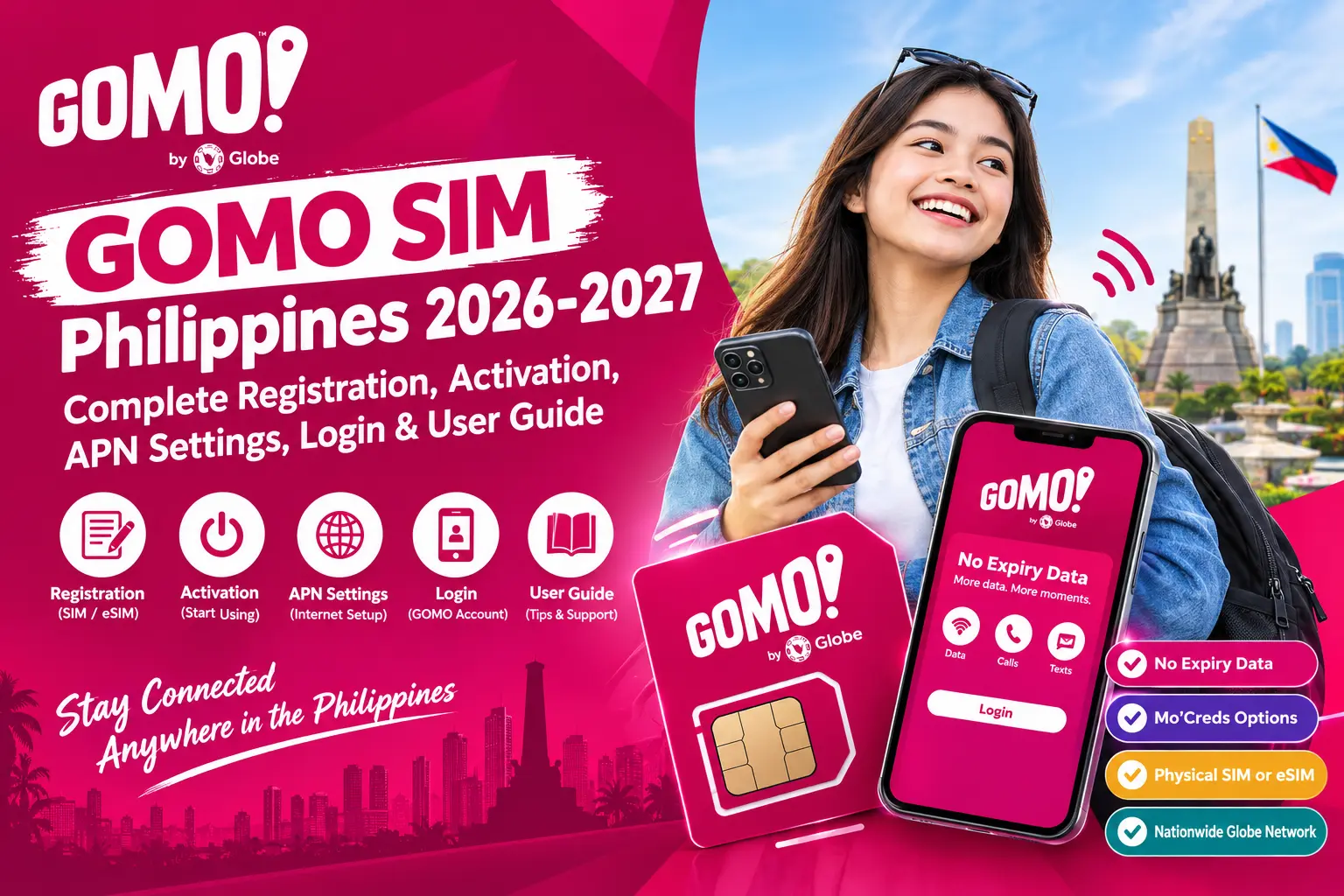
GOMO SIM Philippines 2026-2027: Complete Registration, Activation, APN Settings, Login & User Guide
If you have recently purchased a GOMO SIM in the Philippines, this GOMO SIM Philippines 2026–2027 guide will help you understand the complete process, from SIM registration and activation to account login, APN settings, mobile data configuration, and troubleshooting common connection issues. GOMO is a digital mobile service brand powered by Globe Telecom’s network, allowing users to manage supported mobile services conveniently through the GOMO PH app.
One of the key reasons users choose GOMO is its No Expiry Data offers, which provide flexibility for customers who want to use their data without a fixed expiration period, subject to the applicable promo terms. GOMO also offers eligible Mo ’Creds features for accessing supported services and offers. Whether you are setting up a physical GOMO SIM or an eSIM, this guide covers the essential steps to help you get started, manage your account, configure mobile internet, and resolve common setup problems.
GOMO SIM Philippines at a Glance
| Information | Details |
|---|---|
| Mobile Brand | GOMO |
| Network Provider | Globe Telecom network |
| Official App | GOMO PH |
| SIM Types | Physical SIM and eSIM, where supported |
| Popular Feature | No Expiry Data |
| Data Feature | Mo ’Creds conversion, subject to available offers |
| SIM Registration | Required under Philippine law |
| Main Management Method | GOMO PH app and supported digital services |
| Applicable Law | Republic Act No. 11934 (SIM Registration Act) |
What Makes GOMO SIM Different?
GOMO SIM Philippines offers a digital-first mobile experience that allows users to manage supported mobile services through the GOMO PH app. Instead of depending primarily on physical service centers, customers can use digital tools for account access, SIM management, data offers, and other available features. The service also stands out for its No Expiry Data offers, giving users greater flexibility in managing their mobile data according to the applicable promo conditions.
GOMO SIM registration is an essential step for eligible subscribers in the Philippines under Republic Act No. 11934, also known as the SIM Registration Act. Users should prepare a valid identification document and provide the required information before starting the registration process. Completing the applicable registration requirements helps subscribers access mobile services in accordance with Philippine regulations.
Before You Start Your GOMO SIM Registration
Preparing the required documents and checking your device before starting can help make GOMO SIM registration in the Philippines easier. Before opening the GOMO PH app, make sure you have the following items ready:
Accepted identification documents may include a Philippine Identification Card (PhilID), passport, driver’s license, or UMID, depending on the registration requirements presented by GOMO.
Important: Enter your personal information exactly as it appears on your identification document. Incorrect names, dates of birth, or other details may delay verification or result in a registration issue. Homepage
GOMO SIM Registration Process in the Philippines
GOMO SIM registration is designed to be completed digitally through the GOMO PH app. Physical SIM users should prepare their SIM card, while eSIM users should follow the installation instructions provided with their order.
Step 1: Install Your GOMO SIM registration or eSIM
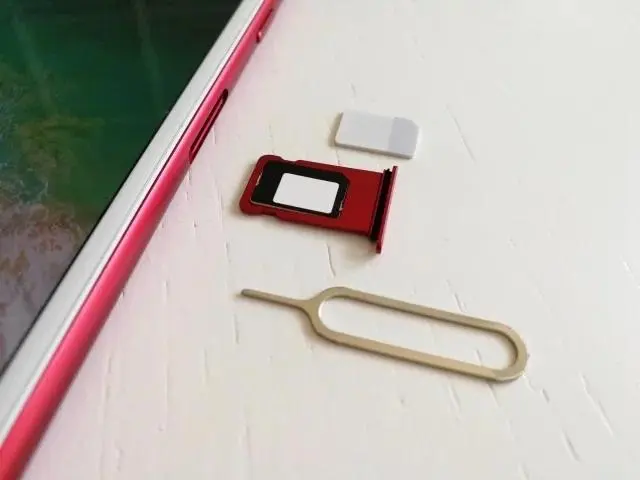
Begin by preparing your SIM on an unlocked, compatible smartphone.
Using SIM Slot 1 may be convenient on a dual-SIM phone, but the correct slot depends on your device and setup. Before proceeding, visit the official GOMO Philippines website for current SIM options and setup information.
Step 2: Open the GOMO PH App and Enter Your Number
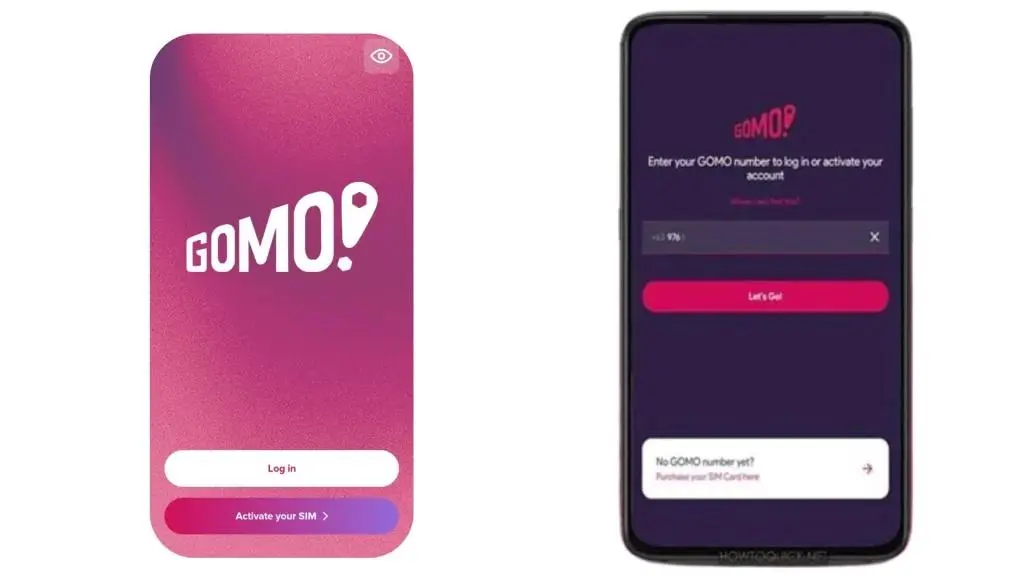
Open the GOMO PH app and follow the on-screen instructions to access the relevant registration or account setup option.
If the code does not arrive, check your network signal, confirm that you entered the correct number, and request another code only when the app permits it.
Step 3: Submit Your Identification Details
Follow the registration instructions and provide the personal information required by the official process.
Use good lighting and ensure that the document is readable, with no strong glare or covered information. Submit personal information only through GOMO’s verified official channels.
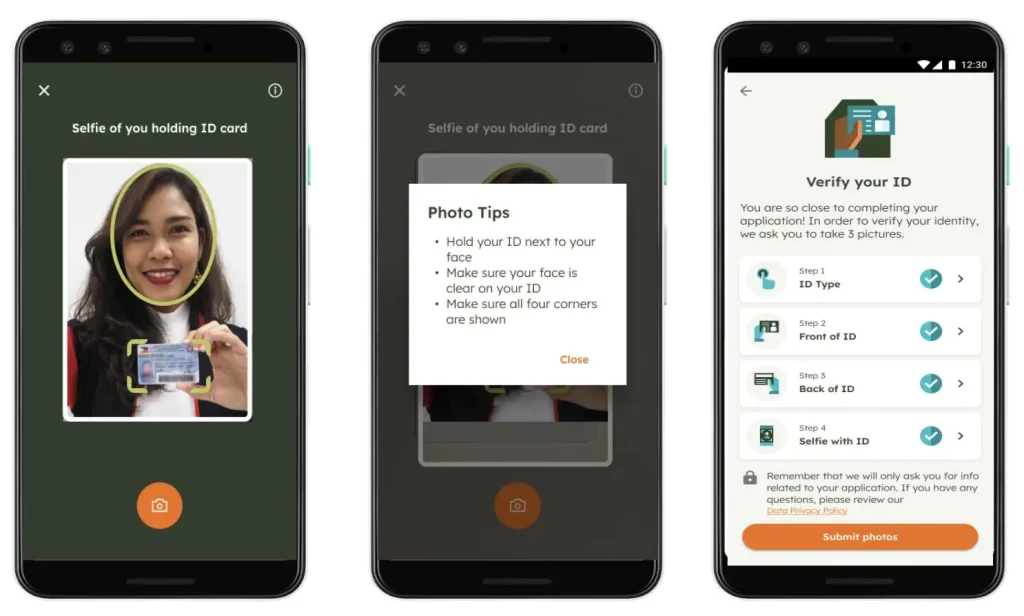
Step 4: Review Your Registration Information
Before submitting your registration, carefully review all the information you have entered.
Once the information is accurate, submit your registration through the official process. Avoid submitting multiple applications unnecessarily, as this may complicate troubleshooting.
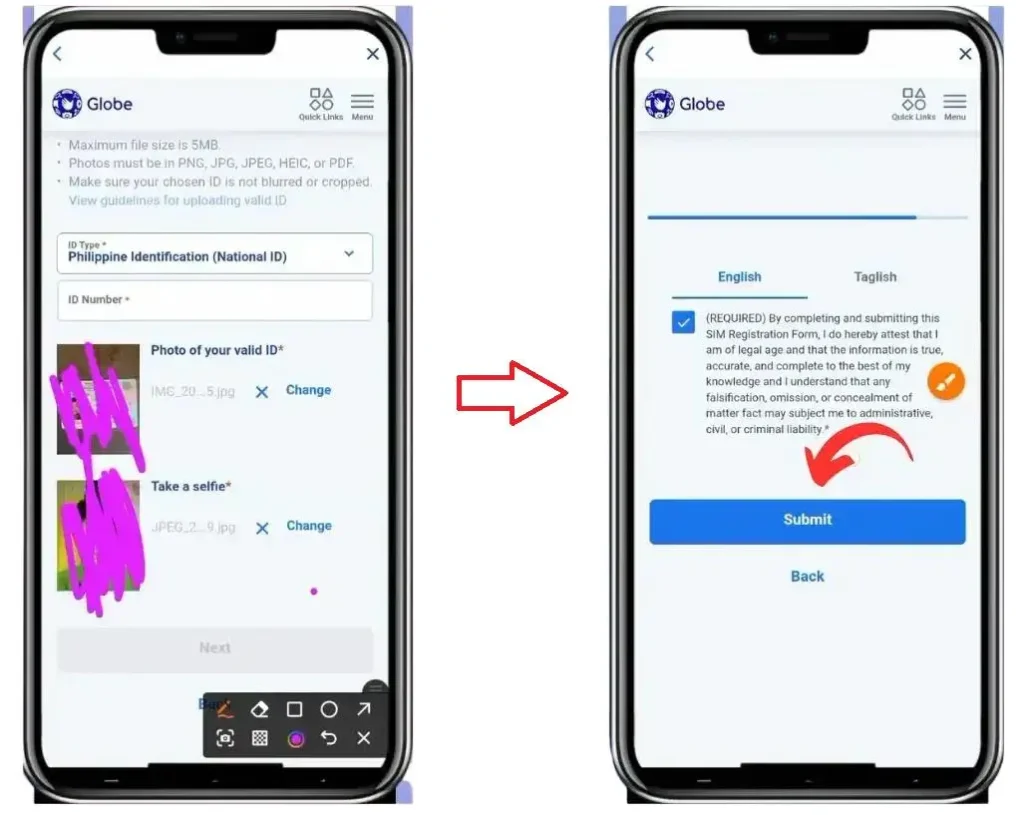
Step 5: Wait for GOMO SIM Registration Confirmation
After submitting your details, wait for GOMO to process the registration. Check the GOMO PH app and any official SMS notifications for the outcome.
Once registration is confirmed, proceed with any remaining activation or account setup steps displayed by GOMO. If your registration remains pending or is rejected, follow the instructions provided through the official support channels rather than repeatedly submitting the same information.
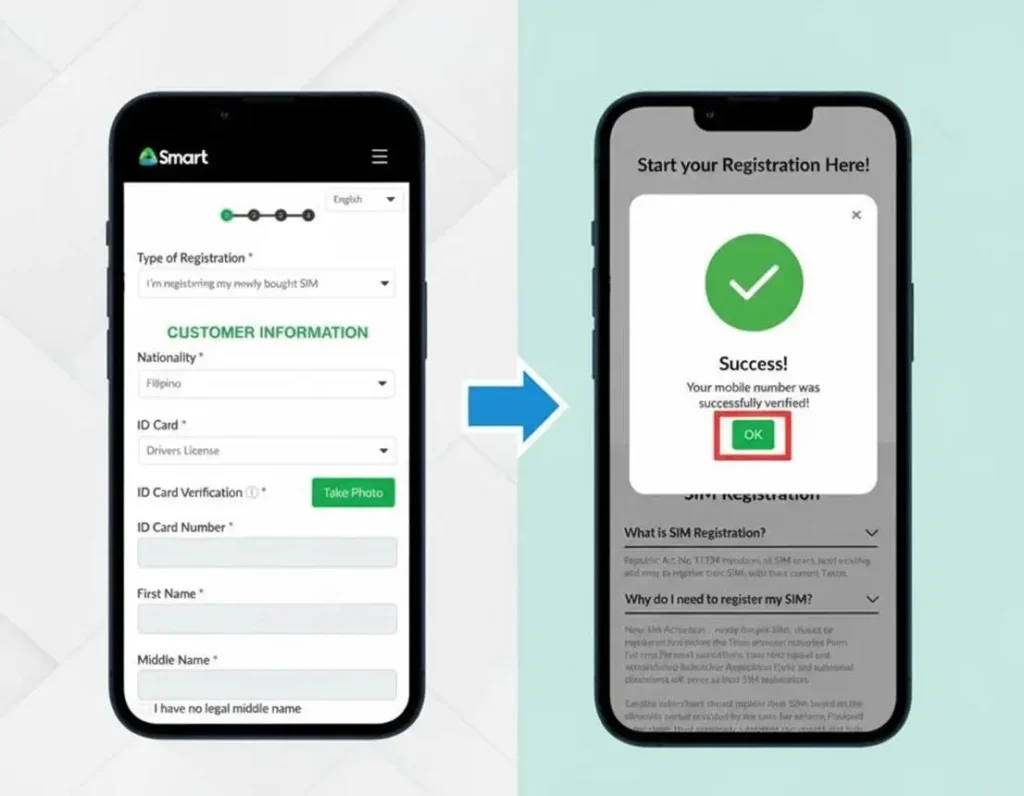
GOMO SIM Activation After Registration
GOMO SIM registration and activation are related but separate processes. After completing registration, follow the instructions provided by GOMO to activate your SIM and access your mobile services. Open the GOMO PH app and sign in or complete account setup using your registered GOMO mobile number, as prompted. Depending on the app version and account requirements, you may be asked to verify your number, create a security PIN, or enable biometric authentication if supported.
Once your account is ready, the app can help you manage your GOMO SIM Philippines services from one place. You may be able to check your available data balance, explore current offers, view vouchers, review transaction history, and access eligible Mo ’Creds features. GOMO’s No Expiry Data offers are another popular feature, allowing eligible data packages to remain available without a standard fixed expiry, subject to the specific terms and conditions of each offer.
What Can You Do After GOMO SIM Activation?
After activation and successful account setup, the GOMO PH app provides access to various mobile account management features, depending on your SIM, account status, and currently available services.
Key features may include:
Tip: Before purchasing a new data package, review your current balance and the terms of the offer to understand its data allowance, validity conditions, and any applicable restrictions.
GOMO APN Settings for Mobile Data
Your smartphone will often configure the required network settings automatically when you insert and activate a GOMO SIM. However, if mobile data does not work after activation, checking the GOMO APN settings may help resolve the issue.
APN stands for Access Point Name. It helps your smartphone establish a mobile data connection through your network provider. Incorrect settings can prevent internet access even when your phone detects the SIM and displays a network signal.
Recommended GOMO APN Settings
The following table provides a starting point for checking your device’s APN configuration. Confirm the correct values with official GOMO support before manually changing settings, as requirements can vary.
| APN Setting | Value |
|---|---|
| Name | GOMO |
| APN | gomo.ph — verify with GOMO |
| Proxy | Not set |
| Port | Not set |
| Username | Not set |
| Password | Not set |
| APN Type | default,supl |
| APN Protocol | IPv4/IPv6 |
Important: These values should not be treated as universally verified settings for every GOMO SIM or device. If your mobile internet is already working, leave the existing APN configuration unchanged. If the connection fails, check GOMO’s current official instructions before saving a new profile.
How to Update GOMO APN Settings on Your Phone
For Android:
- Open Settings on your smartphone.
- Select Mobile Network or SIM Cards and Mobile Networks.
- Choose your GOMO SIM.
- Open Access Point Names (APN).
- Check the existing profile or add a new one using the values confirmed by GOMO.
- Save the profile and select it if required.
- Enable mobile data and test your connection.
For iPhone:
- Open Settings.
- Select Cellular or Mobile Service.
- Choose your GOMO line, if multiple SIMs are installed.
- Check whether APN settings are available under Cellular Data Network.
- Follow GOMO’s official instructions if manual configuration is required.
APN editing may not be available on every iPhone or carrier configuration. If the relevant option is missing, do not change unrelated network settings; contact GOMO support for assistance.
GOMO APN Setup on Android
If your GOMO SIM promo is registered and activated but mobile internet is not working, checking the GOMO APN settings for Android may help. Menu names can differ between Samsung, Xiaomi, OPPO, Vivo, and other Android devices, but the configuration is generally found under the mobile network settings.
Steps to Configure GOMO APN on Android
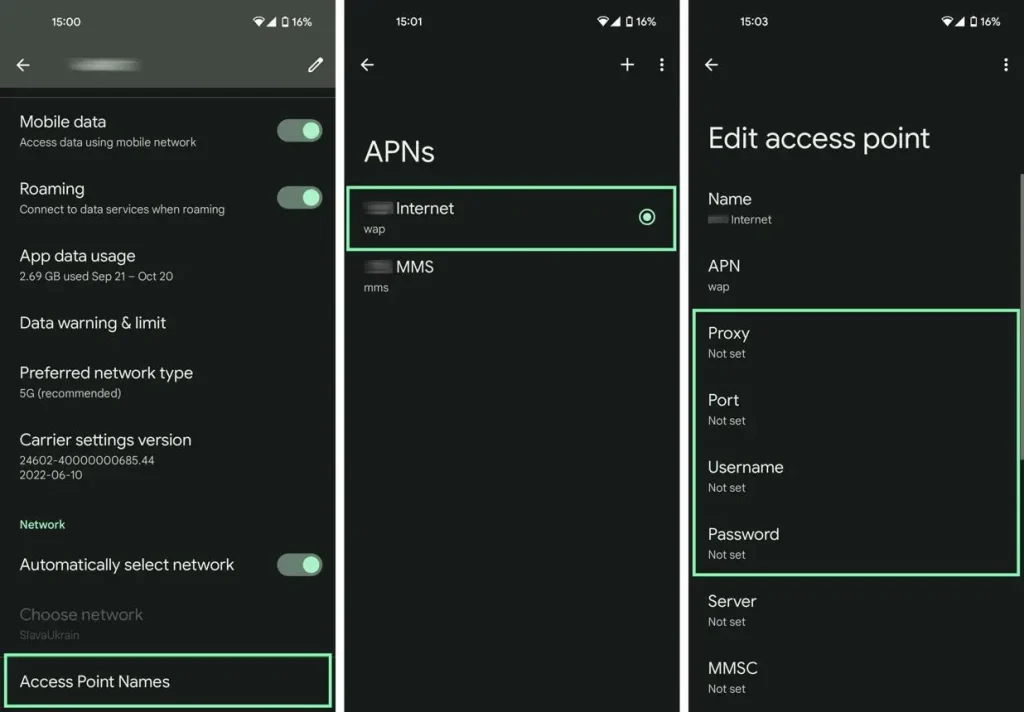
Follow these steps to check or update your APN:
- Open Settings on your Android phone.
- Select Connections, SIM Cards, or Mobile Network.
- Choose your GOMO SIM.
- Open Access Point Names (APN).
- Select Add New APN if a new profile is necessary.
- Enter the APN details confirmed by GOMO.
- Save the profile and select it as the active APN.
Use the following values only after confirming that they match GOMO’s current network configuration:
Leave Proxy, Port, Username, and Password blank unless official instructions specify otherwise.
After saving the profile, turn Mobile Data off and back on. If the internet connection still fails, restart your smartphone and test the connection again. If your existing APN works correctly, there is no need to replace it.
GOMO APN Settings on iPhone
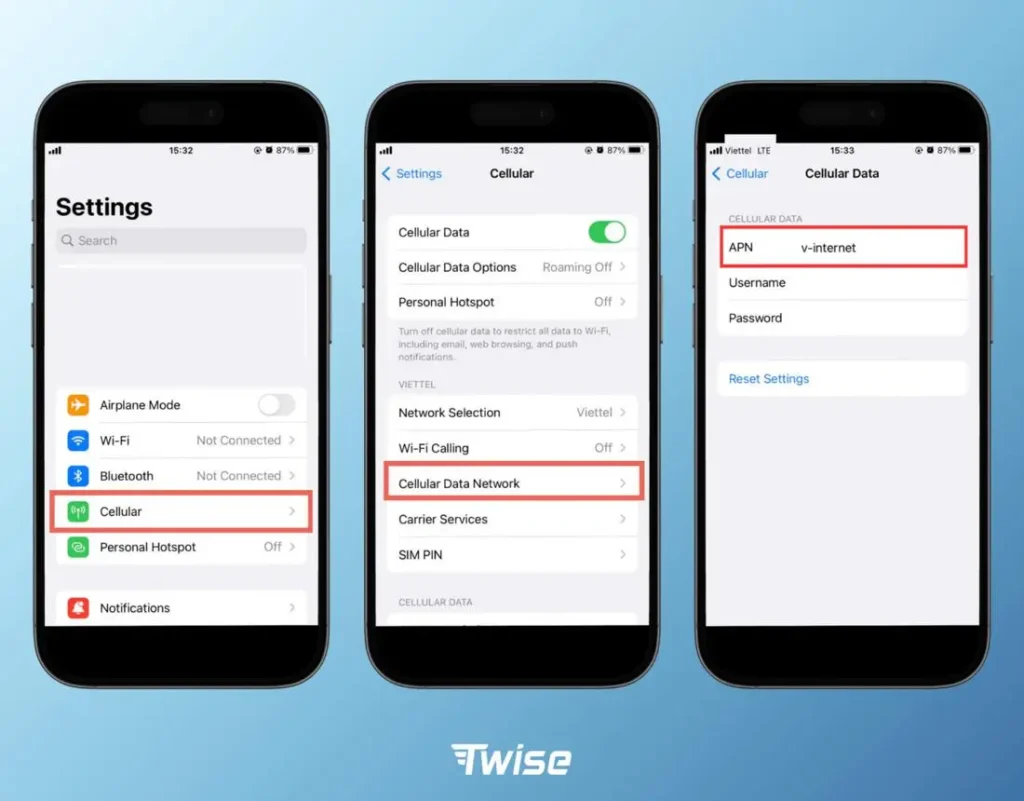
On supported iPhones, mobile data configuration may be available through the cellular settings menu. However, the APN options shown depend on your carrier configuration and iOS version.
Steps to Check GOMO APN on iPhone
- Open Settings.
- Tap Cellular or Mobile Service.
- Select your GOMO line if you use multiple SIMs.
- Look for Cellular Data Network, if available.
- Check the APN field under Cellular Data.
- Enter the value specified by GOMO if manual configuration is supported.
The suggested APN to verify is gomo.ph. Do not assume this value is correct for every device or configuration; consult GOMO’s official support instructions before changing it.
If the Cellular Data Network option is missing, your carrier may manage APN settings automatically. Avoid changing unrelated network settings. Instead, confirm that your GOMO line is enabled for mobile data and check for available carrier settings updates.
GOMO SIM Registration and Activation Problems: Solutions
Sometimes, users experience difficulties while completing GOMO SIM registration, activation, app login, or mobile data setup. These problems can result from weak network coverage, incorrect information, verification delays, device compatibility, or application issues.
The table below outlines common problems and practical troubleshooting steps.
| Problem | Possible Cause | Recommended Solution |
|---|---|---|
| No signal | SIM installation issue or limited network coverage | Reinsert the SIM, toggle Airplane Mode, and check coverage. |
| Mobile data not working | Data service inactive, incorrect APN, or exhausted allowance | Confirm activation, check your data balance, and verify APN settings with GOMO. |
| OTP not received | Network delay or incorrect mobile number | Verify the number, check message reception, and request another code when permitted. |
| GOMO PH app login failure | Outdated app, connectivity issue, or temporary service problem | Update the app, check your internet connection, and try again later. |
| Registration rejected | Incorrect personal information or unreadable ID image | Review your submitted details and follow the official instructions for correcting them. |
| eSIM not working | Incomplete installation or unsupported device | Check device compatibility, confirm the eSIM profile is installed, and follow GOMO’s setup instructions. |
| SIM registered but inactive | Activation still pending or another account issue | Check the registration status and contact official GOMO support if necessary. |
| Slow mobile internet | Weak signal, network congestion, or device settings | Test another location, check your network mode, and restart your phone. |
Additional Tips to Prevent GOMO SIM Problems
These steps can help you identify whether the issue relates to registration, activation, your smartphone, or mobile network configuration before proceeding with further support.
How to Check Your GOMO Data Balance
Checking your remaining data is an important part of managing your GOMO SIM promo Philippines account. The easiest way to view your available data is through the GOMO PH app. After signing in, open your account dashboard and look for your data balance and active offers.
The app may also provide access to your profile, available vouchers, transaction history, and eligible Mo ’Creds features. Reviewing these details before purchasing another data package can help you choose an offer that matches your usage.
Details to Check in the GOMO PH App
Keep in mind that available features and the way balances are displayed may vary depending on your account and the current app version.
How to Log In to Your GOMO Account
The GOMO account login process allows registered users to access their mobile account and manage available services. Depending on the current login interface, you may need your registered GOMO mobile number and six-digit PIN to sign in.
GOMO Login Steps
- Open the official GOMO PH app.
- Enter your registered GOMO mobile number when requested.
- Enter your six-digit account PIN if prompted.
- Tap Log In or the corresponding sign-in option.
- Once authenticated, open your account dashboard to check your data balance and other available features.
If your compatible smartphone supports biometric authentication and the app offers this feature, you may also be able to sign in using fingerprint recognition or Face ID.
Forgot Your GOMO PIN?
If you cannot remember your account PIN, use the Forgot PIN? option if it is available on the official login screen.
Follow the verification instructions provided by GOMO to recover access to your account. Avoid repeatedly entering random PIN combinations, as unsuccessful attempts may trigger temporary security restrictions.
If you cannot complete the recovery process, contact GOMO through its official support channels. Never share your OTP or account PIN with anyone claiming to offer unofficial account recovery services.
GOMO eSIM: A Simple Explanation
A GOMO eSIM Philippines is a digital SIM that allows compatible smartphones to connect to a mobile network without requiring a physical plastic SIM card. Instead, the user installs an electronic SIM profile and follows the activation instructions supplied by the provider.
GOMO’s available SIM products, eSIM eligibility, pricing, and activation requirements may change over time. Before purchasing, check the official GOMO Philippines website to confirm current availability and device compatibility.
GOMO Physical SIM vs. eSIM
| Feature | Physical GOMO SIM | GOMO eSIM |
|---|---|---|
| Plastic SIM card | Required | Not required |
| Installation | Insert the SIM card | Install a digital SIM profile |
| Device compatibility | Unlocked, compatible phone | Unlocked, eSIM-compatible phone |
| Moving to another phone | Transfer the physical SIM | Transfer or reconfigure according to provider instructions |
| Dual-SIM support | Depends on the device | Depends on the device |
| Setup method | Physical installation and activation | Digital installation and activation |
Which GOMO SIM Option Should You Choose?
Choose a physical GOMO SIM promo if you prefer a removable card that can be transferred between compatible phones. It can also be a practical option if your smartphone does not support eSIM technology.
A GOMO eSIM may be more convenient if your phone supports it and you prefer digital installation without handling a physical card. It can also help you manage multiple mobile lines on supported devices.
Before deciding, confirm your phone’s compatibility and review GOMO’s current product availability, activation instructions, and transfer requirements. Both options depend on successful registration and activation to access the applicable mobile services.
How to Install a GOMO eSIM
Installing a GOMO eSIM Philippines is a digital process that requires a compatible smartphone and the installation instructions provided with your purchase. Before starting, confirm that your device supports eSIM technology and that the GOMO eSIM product you purchased is compatible with your phone.
Before Installing Your GOMO eSIM
GOMO eSIM Installation Steps
- Open the eSIM installation instructions provided with your GOMO purchase.
- Follow the supplied process to add the eSIM profile to your smartphone.
- Complete any QR-code scanning or manual setup steps required.
- Open your phone’s Cellular or SIM Settings menu.
- Confirm that the GOMO line appears and enable it as instructed.
- Test your mobile network and data connection after installation.
The exact process may vary by device and purchase method. Do not delete an installed GOMO eSIM profile unless you have confirmed how to reinstall or recover it.
What to Do When GOMO Has No Signal
If your GOMO SIM displays No Service, Searching, or another network error, the problem may relate to SIM installation, device settings, local coverage, or a temporary network issue. GOMO uses Globe’s network infrastructure, so service availability depends on coverage and network conditions in your area.
Troubleshooting GOMO Network Problems
Try these steps before changing advanced settings:
- Check SIM installation: Make sure your physical SIM is inserted correctly or your eSIM profile is installed.
- Refresh the network: Enable Airplane Mode briefly, then disable it.
- Restart your phone: This can help the device reconnect to the network.
- Check your SIM settings: Ensure your GOMO line is enabled.
- Review network coverage: Test your connection in another location if possible.
- Check mobile data settings: If calls and SMS work but internet access does not, review your data balance and APN configuration.
If the issue continues, contact GOMO through its official support channels to check for activation or network problems.
Keep Your GOMO Account Safe
Protecting your GOMO account is essential because it may contain personal information, account details, and access to mobile services. Use the official GOMO PH app and verified website when registering your SIM, signing in, or managing your account.
GOMO Security Mistakes to Avoid
A message can appear genuine without actually coming from GOMO. If you receive a suspicious SIM registration or activation request, verify it through GOMO’s official channels before taking action.
GOMO Physical SIM vs. eSIM: Which Is Better?
Choosing between a physical SIM and an eSIM depends on your smartphone’s capabilities and how you prefer to manage your mobile connection.
A Physical GOMO SIM May Be Better If:
A GOMO eSIM May Be Better If:
| Consideration | Physical GOMO SIM | GOMO eSIM |
|---|---|---|
| Installation | Insert a SIM card | Install a digital profile |
| Device support | Compatible SIM-enabled phone | Compatible eSIM-enabled phone |
| Transfer between devices | Move the card | Follow the provider’s transfer or reinstallation process |
| Physical card required | Yes | No |
| Setup requirements | SIM and activation instructions | eSIM profile and installation instructions |
Before purchasing, check the official GOMO Philippines website for current SIM options, eSIM availability, and device requirements.
GOMO SIM Setup Errors You Should Avoid
Small mistakes during registration, activation, or network configuration can prevent your GOMO SIM from working correctly. Keep these common issues in mind:
Following these precautions can help reduce common GOMO SIM registration, activation, and connectivity problems.
GOMO SIM Registration: Final Setup Checklist
Before using your GOMO SIM Philippines, review the following checklist to make sure your SIM, account, registration, and mobile data settings are ready.
Once registration and activation are confirmed and your mobile connection works, your GOMO SIM should be ready for normal use, subject to network coverage and the terms of your selected offer.
What to Do If GOMO SIM Registration Fails
A failed GOMO SIM registration does not necessarily mean your SIM is defective. Incorrect personal information, an unclear identification photo, incomplete verification, an unstable internet connection, or an application issue can interrupt the process.
Before submitting another registration request, review your information and follow any instructions displayed by GOMO.
Check These Things First
If registration continues to fail, contact GOMO through its official support channels instead of submitting personal information to unfamiliar websites.
GOMO OTP Not Received? Try These Fixes
An OTP (One-Time Password) may be required to verify your GOMO mobile number during registration or account login. If you do not receive the code, check your connection and mobile number before requesting another one.
Try these troubleshooting steps:
- Wait briefly for the verification message.
- Confirm that the correct mobile number was entered.
- Check whether messages have been filtered or blocked.
- Toggle Airplane Mode off and on to refresh the network connection.
- Request another OTP when the app allows it.
- Restart your smartphone if the issue continues.
If your phone cannot receive other SMS messages either, the problem may involve network reception or your SIM service rather than the GOMO PH app.
Security tip: Never share your OTP with anyone, even someone claiming to be a GOMO representative.
GOMO SIM Shows No Signal
If your phone displays No Service, No Signal, or Searching, the cause may be incorrect SIM installation, disabled cellular settings, limited coverage, or a temporary network problem.
Quick Fixes for GOMO Network Issues
For a GOMO eSIM, confirm that the digital profile is installed and enabled. Do not delete the eSIM profile simply because the network is temporarily unavailable, as reinstalling it may require additional information or support.
If the signal remains unavailable, contact GOMO through its official support channels to check your SIM status and possible network issues.
GOMO Mobile Data Not Working
If your GOMO SIM has a network signal but mobile internet is unavailable, begin by checking your data balance, mobile-data settings, and selected SIM.
Make sure Mobile Data is enabled and that GOMO is selected as the preferred data line on a dual-SIM smartphone. Also confirm that your account is active and that you have an eligible data allowance or offer.
GOMO APN Settings
The following values are a reference for troubleshooting, not a guarantee of the correct configuration for every GOMO device. Verify the current settings with official GOMO support before creating or modifying an APN profile.
| Setting | Value to Verify |
|---|---|
| Name | GOMO |
| APN | gomo.ph |
| Proxy | Not set |
| Port | Not set |
| Username | Not set |
| Password | Not set |
| APN Type | default,supl |
| APN Protocol | IPv4/IPv6 |
If these settings are confirmed for your device, save the profile, select it, and toggle mobile data off and on again. Restart your smartphone if necessary.
If mobile internet was working before you changed the APN, restore the previous working configuration instead of creating multiple profiles. If the problem persists, contact GOMO support for the correct network settings.
GOMO eSIM Not Working? Check These Settings
A GOMO eSIM Philippines allows you to connect to a mobile network without inserting a physical SIM card. However, your smartphone must support eSIM technology, and the digital profile must be installed and configured correctly.
1. Check eSIM Compatibility
Confirm that your smartphone supports eSIM and that your particular device variant is compatible with the required network configuration.
2. Check the Installed eSIM Profile
Open your phone’s SIM or cellular settings. Make sure the GOMO eSIM appears in the list of available lines and is enabled.
3. Select GOMO for Mobile Data
If another SIM is active, check that GOMO is selected as the mobile-data line when you want to use its internet connection.
4. Check Network and Activation Status
Confirm that the eSIM installation is complete and that any required activation steps have been completed. Toggle Airplane Mode or restart your device to refresh its network connection.
5. Avoid Unnecessary eSIM Removal
Do not delete the GOMO eSIM profile unless you understand the reinstallation process and have the necessary information. If the profile is missing or cannot connect, consult official GOMO support before attempting a reinstall.
If these checks do not resolve the issue, contact GOMO for assistance with activation, profile installation, or network connectivity.
Can GOMO Work on a Dual-SIM Phone?
Yes. GOMO SIM can work on a compatible dual-SIM smartphone, but the available configuration depends on the device’s hardware, software, and supported SIM combinations. Some smartphones support a physical SIM and an eSIM simultaneously, while others offer different configurations.
When using GOMO alongside another mobile line, review the settings for each service:
If your GOMO SIM shows a signal but mobile internet does not work, checking the selected data SIM is an important troubleshooting step.
How to Protect Your GOMO Account
Keeping your GOMO account secure is essential because your mobile number may be linked to other digital services and personal information. Following a few basic security practices can help protect your account from unauthorized access, phishing attempts, and fraudulent messages.
Follow These GOMO Account Security Tips
If you suspect that your GOMO account has been compromised, use official GOMO support channels to secure your account as soon as possible.
Frequently Asked Questions About GOMO SIM Philippines
Conclusion
The GOMO SIM Philippines 2026–2027 setup process covers SIM registration, activation, account login, APN settings, eSIM installation, data balance checks, and troubleshooting. Whether you choose a physical SIM or a compatible eSIM, preparing your identification document, mobile number, smartphone, and internet connection can help make the initial setup easier.
After successful registration and activation, the GOMO PH app provides access to supported account-management features, data offers, and eligible services such as No Expiry Data and Mo ’Creds options. If you experience issues such as missing OTPs, no network signal, unavailable mobile data, or eSIM installation errors, check your device settings and account status before contacting official support.
For the safest experience, use verified GOMO channels for registration, purchases, account recovery, and assistance. Keep your PIN, OTP, and personal information private, and review the terms of each data offer before purchasing. These precautions can help you manage your GOMO SIM Philippines account more confidently throughout 2026–2027.