Senior Citizen Online Registration: NCSC Guide Philippines 2026
Important: This is an unofficial guide. This website is not affiliated with, endorsed by, or connected to the National Commission of Senior Citizens (NCSC). To register online, please go through the official NCSC website.
Visit the Official NCSC Website
For Filipino senior citizens, proper registration helps the government understand their needs and plan better services and programmes. The National Commission of Senior Citizens (NCSC) provides an online registration facility to collect important information about older persons and support government planning and services.
If you or a family member needs to complete NCSC senior citizen registration in the Philippines in 2026, knowing the process in advance can help avoid mistakes. This guide explains who can register, what information is needed, how to complete the online Senior Citizen Data Form (SCDF), and how to keep your PKN and Registration Reference Number (RRN) safe for future reference.
What Is NCSC Senior Citizen Registration?
NCSC senior citizen registration is the process of submitting an older person’s information to the National Commission of Senior Citizens (NCSC) through the Senior Citizen Data Form (SCDF). The information helps the government better understand the needs and living conditions of Filipino senior citizens and supports planning for relevant programmes and services.
The registration form may ask for details about personal and family background, education, skills, financial circumstances, and health. Through the official NCSC online facility, users can access registration services and check existing records where available. To protect personal information, applicants should always use the official NCSC website and follow its instructions.
Quick answer: NCSC senior citizen online registration allows eligible older persons to submit their details through the Senior Citizen Data Form (SCDF). After submission, they should keep their registration reference details safe for future verification.
How to Register for the National Commission of Senior Citizens (NCSC) Online
The National Commission of Senior Citizens (NCSC) in the Philippines provides an online facility for senior citizens to submit their personal information through the Senior Citizen Data Form (SCDF). This process helps the government understand the needs, living conditions, health concerns, and financial circumstances of older Filipinos.
If you want to complete your NCSC senior citizen online registration, this step-by-step guide explains how to access the official website, fill out the Senior Citizen Data Form, upload the required identification, submit your information, and verify your registration record.
The form contains several sections, so it is helpful to prepare your personal details and identification before starting. You should also keep your Registration Reference Number (RRN) and Pass Key Number (PKN) safe after submitting the form. Homepage
NCSC Senior Citizen Online Registration
Before starting the registration process, prepare the senior citizen’s personal information and an accepted identification document. According to the instructions provided by the registration facility, you may need an Office of the Senior Citizens Affairs (OSCA) ID or another accepted government-issued ID.
Follow the steps below to complete the online registration process.
Step 1: Open the Official NCSC Website
First, open your preferred web browser on your mobile phone, tablet, or computer. Visit the official National Commission of Senior Citizens website:
Official website: https://www.ncsc.gov.ph/
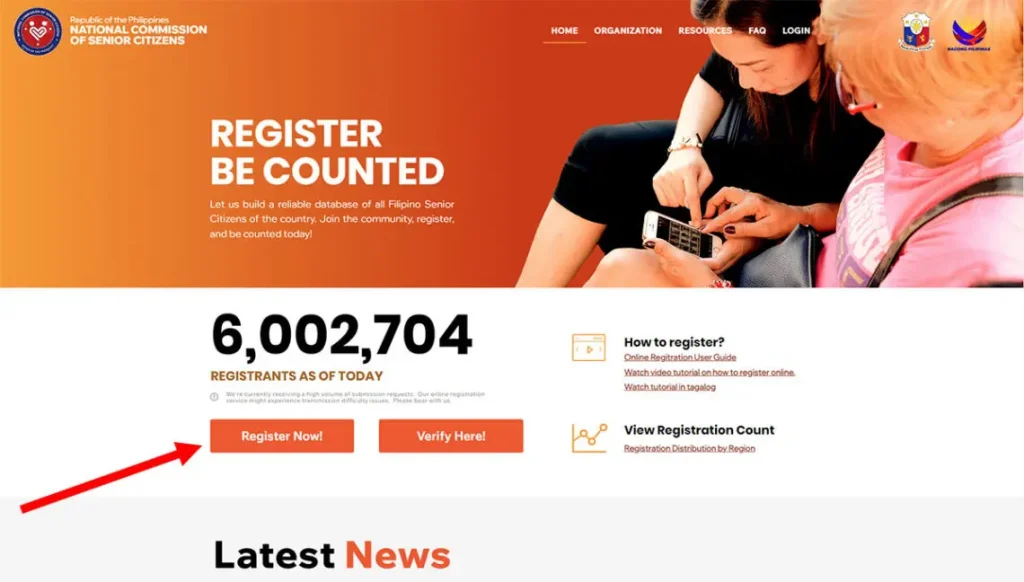
Once the website opens, look for the senior citizen registration facility. If the Register Now! button is available, click it to proceed to the registration instructions.
Step 2: Read the Registration Instructions
Before filling out the form, carefully read the registration guidelines and frequently asked questions displayed on the website. These instructions can help you understand the registration requirements and how your information will be collected.
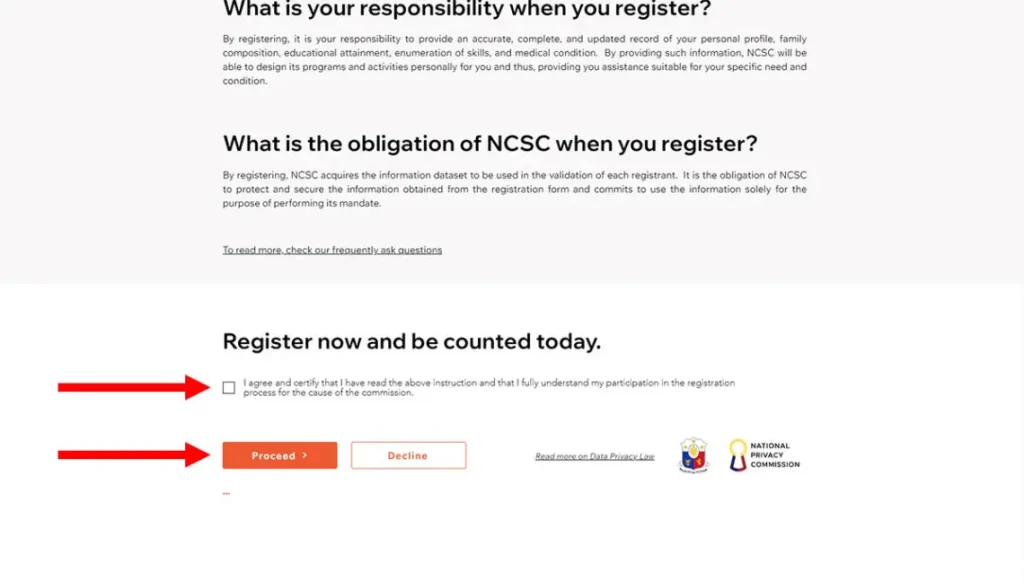
Scroll down to the section that invites senior citizens to register. Read the instructions and review the applicable terms and privacy information.
If you agree to the stated conditions, select the required confirmation checkbox and click Proceed to continue.
If the website displays updated instructions or a different registration process, follow the directions currently shown on the official facility.
Step 3: Fill Out the Online Senior Citizen Data Form
The next step is to complete the Senior Citizen Data Form (SCDF). The form collects information about the applicant’s identity, family, living conditions, education, finances, and health.
Some fields may be optional, while others are required. Fields marked with a red asterisk (*) must be completed.
The form is divided into eight sections, explained below.
Section 1: Identifying Information
This section collects the senior citizen’s basic personal and contact details. Enter the information carefully and make sure it matches the relevant identification documents wherever applicable.
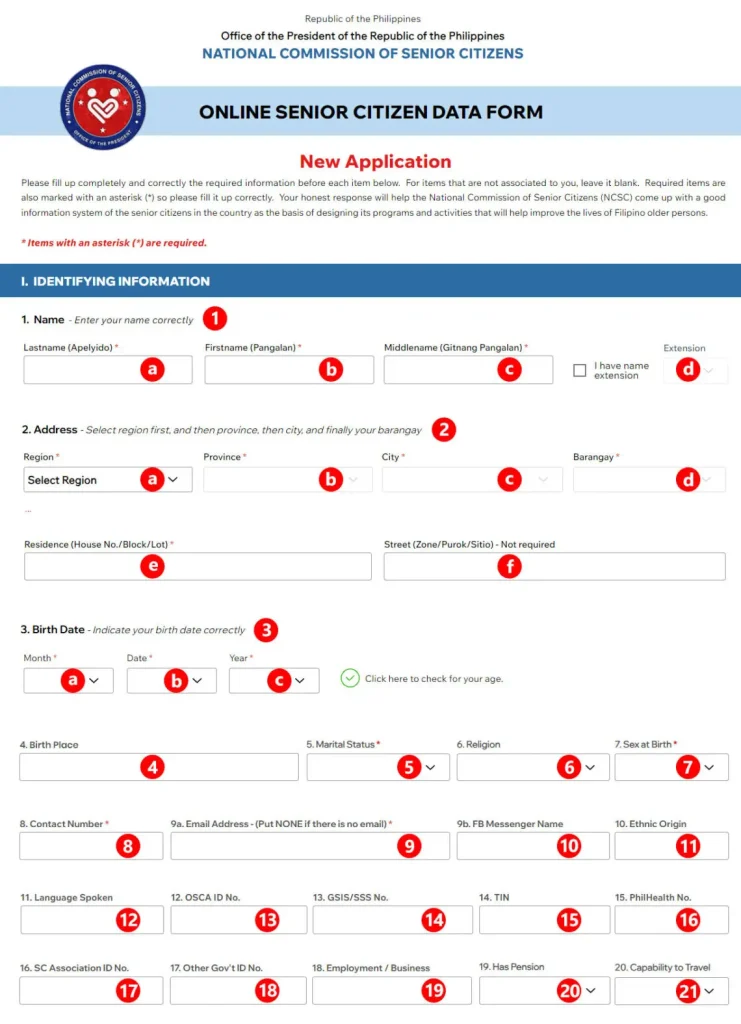
The form may request the following details:
- Last Name: Enter the applicant’s surname or family name.
- First Name: Provide the applicant’s given name.
- Middle Name: Enter the complete middle name if applicable, rather than only the initial.
- Name Extension: Select the appropriate suffix, such as Jr. or III, if applicable.
- Address: Enter the senior citizen’s current residential address.
- Region: Select the region where the applicant lives.
- Province: Choose the appropriate province.
- City or Municipality: Select the correct city or municipality.
- Barangay: Choose the applicant’s barangay.
- House Number, Block, or Lot: Enter the relevant residential address details.
- Street, Zone, Purok, or Sitio: Provide the street or local area name if applicable.
- Birth Date: Enter the correct date of birth according to the applicant’s records.
- Age Eligibility Check: If the form provides an age-check option, use it to check whether the applicant meets the stated registration requirements.
- Birthplace: Enter the city or municipality and province where the applicant was born, if requested.
- Marital Status: Select the appropriate status, such as single, married, widowed, or separated.
- Religion: Select the applicable religion if requested.
- Sex at Birth: Choose the appropriate option provided on the form.
- Contact Number: Enter a working mobile or telephone number where the applicant can be contacted.
- Email Address: Provide an email address if available. Follow the form’s instructions if the applicant does not have one.
- Facebook Messenger Name: Enter the relevant profile name if requested and applicable.
- Ethnic Origin: Provide the applicant’s ethnic group if applicable.
- Language Spoken: List the languages the applicant speaks or understands, separated by commas if necessary.
- OSCA ID Number: Enter the Office of Senior Citizens Affairs identification number if available.
- GSIS or SSS Number: Provide the applicable membership number if requested and available.
- TIN: Enter the Tax Identification Number if applicable.
- PhilHealth Number: Provide the PhilHealth number if requested.
- Senior Citizen Association ID: Enter the association membership number if applicable.
- Other Government ID Number: Provide another accepted government ID number if requested.
- Employment or Business: State the applicant’s current occupation or business activity, if applicable.
- Pension Status: Indicate whether the applicant receives a pension.
- Capability to Travel: Answer according to the applicant’s current ability to travel.
Review every entry before moving to the next section. Incorrect personal details can make it more difficult to identify or verify a registration record later.
Section 2: Family Composition
The family composition section collects information about the senior citizen’s immediate family and dependents. If the form marks these fields as optional, you may skip any information that is not applicable.
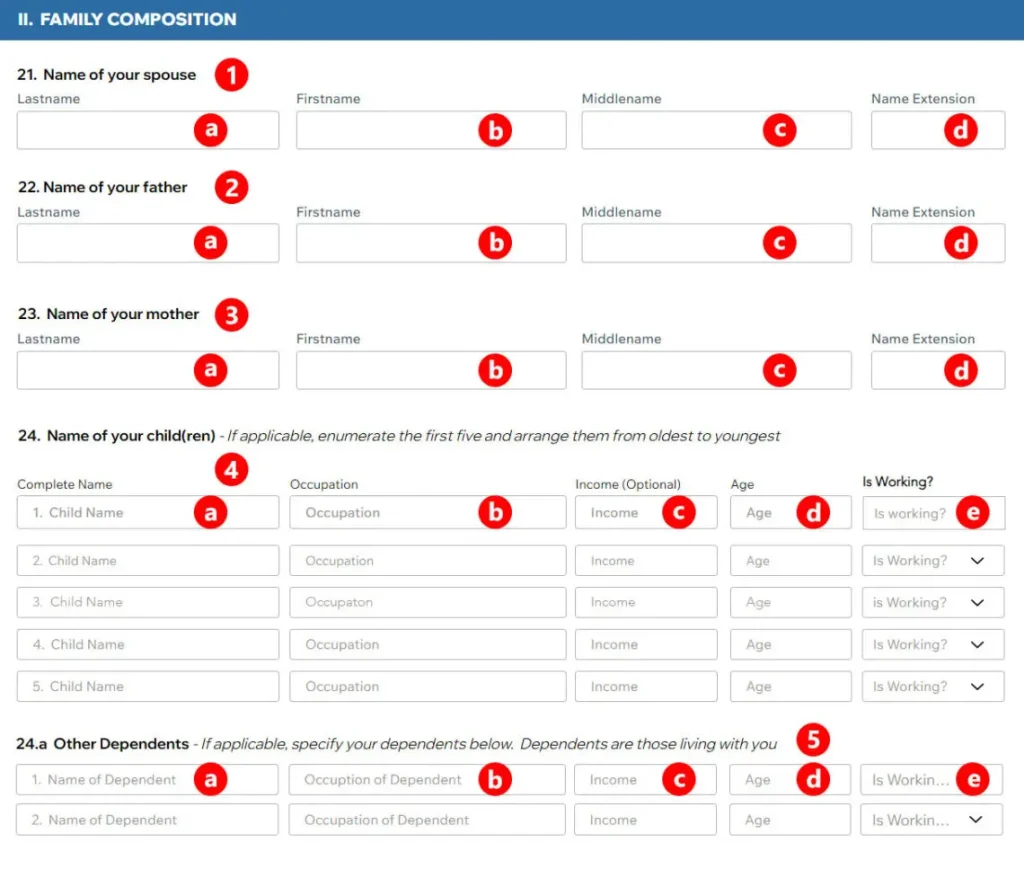
Depending on the fields displayed, you may be asked to provide:
- Spouse’s Name: Enter the complete name of the applicant’s husband or wife, if applicable.
- Spouse’s Last Name: Provide the spouse’s surname.
- Spouse’s First Name: Enter the spouse’s given name.
- Spouse’s Middle Name: Add the middle name if applicable.
- Name Extension: Include a suffix such as Jr. or Sr. if relevant.
- Father’s Name: Enter the applicant’s father’s complete name if requested.
- Mother’s Name: Provide the applicant’s mother’s complete name if requested.
- Children’s Information: Enter the details of the children listed on the form, if applicable.
- Child’s Occupation: Indicate each child’s current occupation.
- Child’s Monthly Income: Provide the monthly income if requested and you are comfortable supplying it.
- Child’s Age: Enter the child’s current age.
- Employment Status: Indicate whether the child is currently working.
- Other Dependents: Add relevant information about other dependents living with or supported by the applicant, if requested.
Provide accurate information where possible. If the applicant has no spouse, children, or other dependents, follow the form’s instructions for handling fields that do not apply.
Section 3: Dependency Profile
The dependency profile helps describe the senior citizen’s living arrangements and level of support from other people.
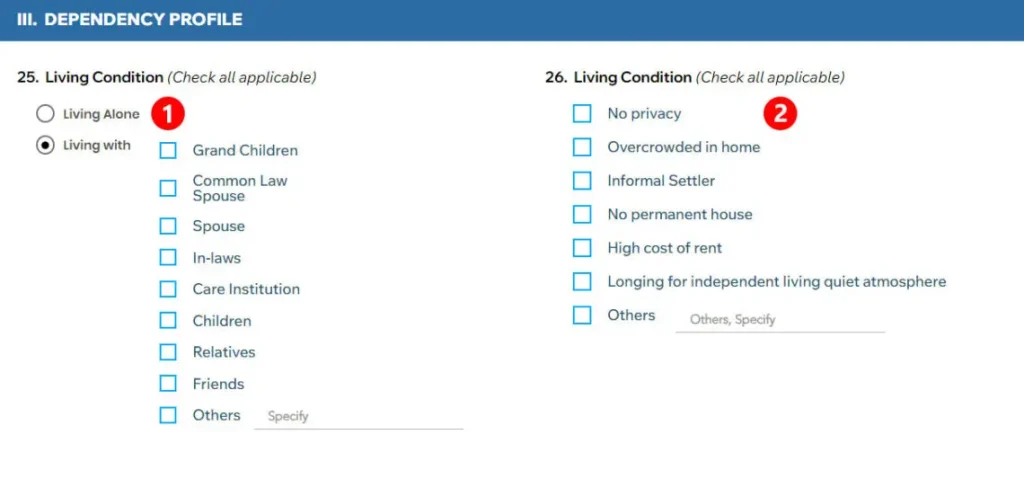
The form may ask about the following:
- Living Condition: Indicate whether the applicant lives alone or with other people.
- Living With: If the applicant lives with others, identify the relevant household members, such as children, a spouse, or relatives.
- Description of Living Conditions: Describe the current living situation where requested. For example, the applicant may live in a shared household or a home with limited space.
Answer these questions according to the applicant’s actual circumstances. This information can help provide a better understanding of the senior citizen’s household situation.
Section 4: Education and Human Resources Profile
This section gathers information about educational background, practical skills, and community participation. These details may help inform programmes designed to support senior citizens.
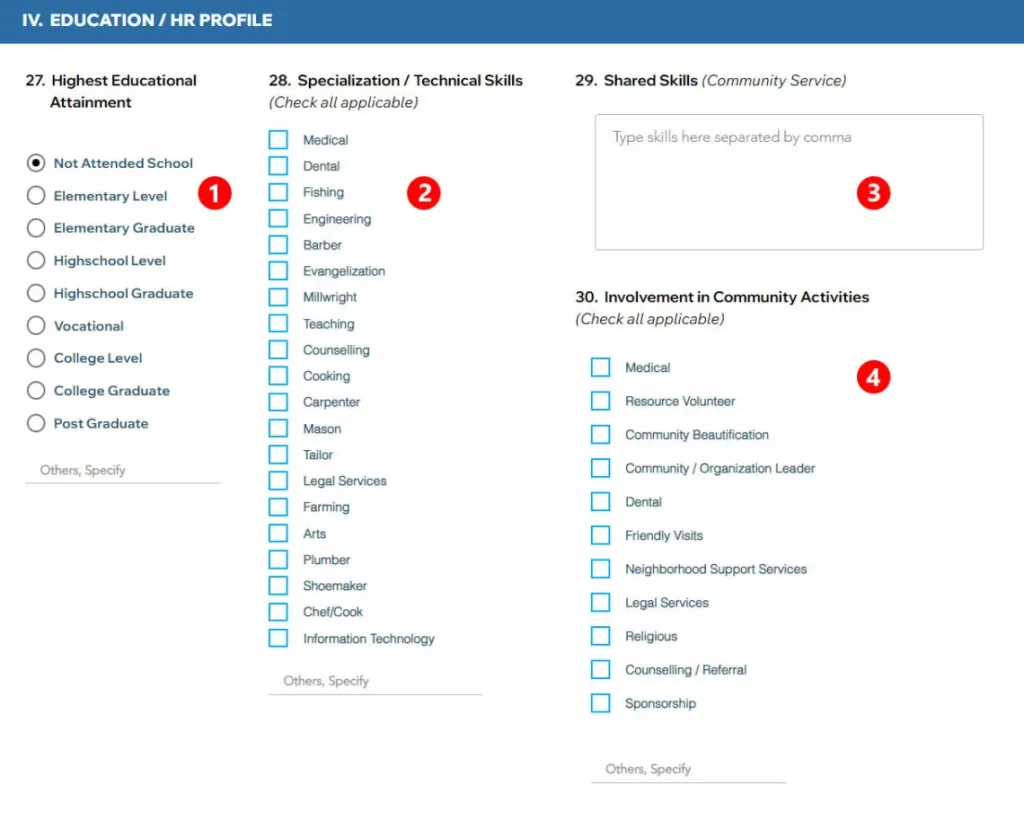
Complete the applicable fields, which may include:
- Highest Educational Attainment: Select the highest level of education the applicant has completed or reached.
- Specialization or Technical Skills: Indicate relevant skills, such as cooking, sewing, carpentry, or computer use.
- Shared Skills: List skills the applicant can share with other members of the community, if applicable.
- Community Activities: Indicate participation in community groups, religious organizations, volunteer activities, or other relevant programmes.
If the applicant has limited formal education but possesses practical experience, provide the most appropriate answers available on the form.
Section 5: Economic Profile
The economic profile collects information about income sources, property ownership, and financial challenges. This section may contain optional questions, so check the form’s instructions before deciding whether to leave any field blank.
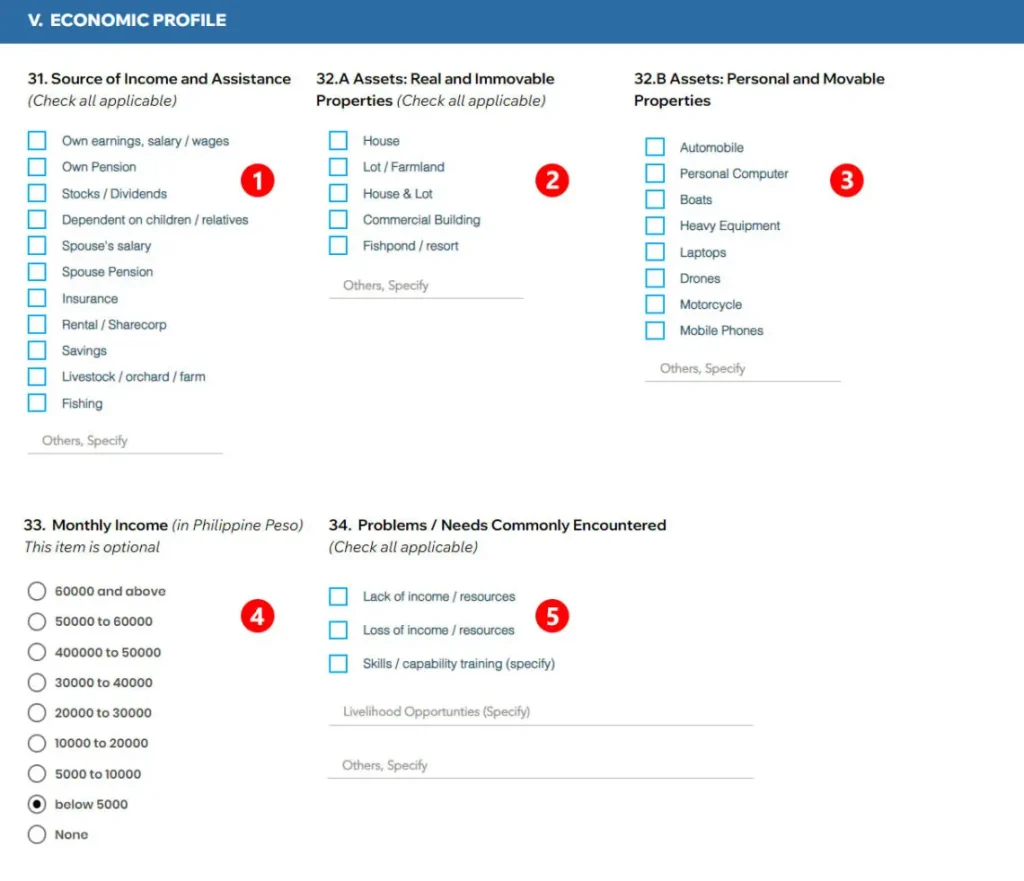
The information requested may include:
- Sources of Income and Assistance: Indicate whether the applicant receives a pension, salary, financial assistance, or other income.
- Real and Immovable Properties: Report applicable property ownership, such as a house or land, if requested.
- Personal and Movable Assets: Provide information about relevant personal assets if required by the form.
- Monthly Income: Select the appropriate income range in Philippine pesos, if applicable.
- Common Problems and Needs: Identify financial or practical challenges the applicant experiences.
For example, a senior citizen may need financial assistance, medical support, skills training, or help meeting everyday expenses. Select the options that accurately reflect the applicant’s circumstances.
Only provide information requested by the official form, and review the privacy notice before submitting sensitive financial details.
Section 6: Health Profile
The health profile asks about the applicant’s medical needs, disabilities, and other health-related concerns. Providing accurate answers can help describe the health challenges experienced by senior citizens.
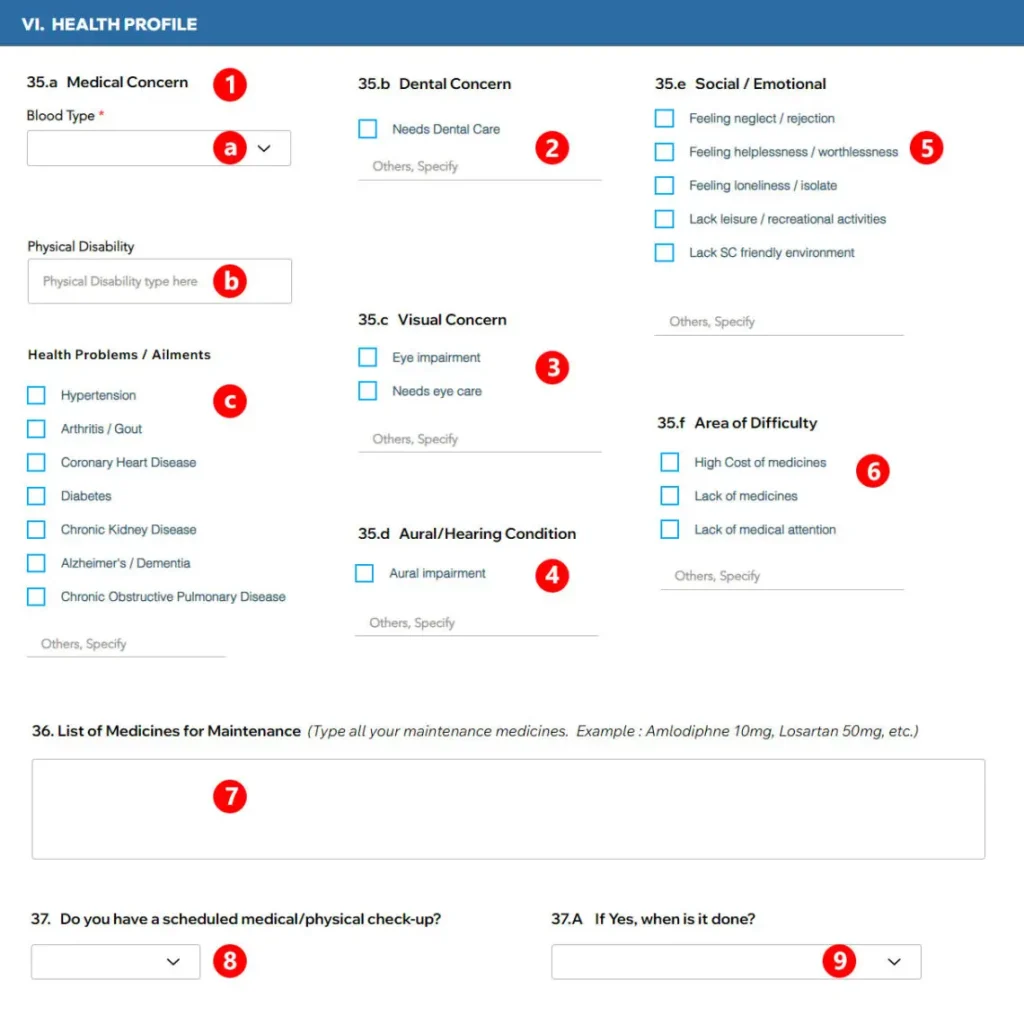
Depending on the available fields, you may need to provide:
- Medical Concerns: Describe relevant health issues or medical needs.
- Blood Type: Select the correct blood type if known. If it is unknown, use the option provided by the form.
- Physical Disability: Indicate any applicable physical disability or mobility limitation.
- Health Problems or Ailments: Select the listed conditions that apply to the applicant. Use an additional specification field if available and necessary.
- Dental Concerns: Indicate whether dental care is needed.
- Vision Concerns: Report eyesight difficulties or the need for eye care, if applicable.
- Hearing Conditions: Indicate hearing difficulties or other relevant concerns.
- Social and Emotional Concerns: Describe relevant concerns, such as loneliness or limited social interaction, if requested.
- Areas of Difficulty: Identify challenges the applicant faces, such as difficulty paying for medicines or accessing medical services.
- Maintenance Medicines: List current medicines if requested, using accurate names and strengths where known.
- Scheduled Medical Checkups: Indicate whether the applicant has a scheduled medical or physical checkup.
- Checkup Frequency: If applicable, provide the requested information about how often checkups take place.
Enter health information carefully. Do not guess a diagnosis, blood type, or medication dosage. If you are helping another person complete the form, ask them or their caregiver to confirm the details whenever possible.
Section 7: OSCA ID and Photo Attachment
This section allows the applicant to provide an image of an accepted identification document.
Follow the instructions displayed on the registration page. The facility may request an OSCA ID or another accepted government-issued ID, such as a UMID or National ID, subject to its current requirements.
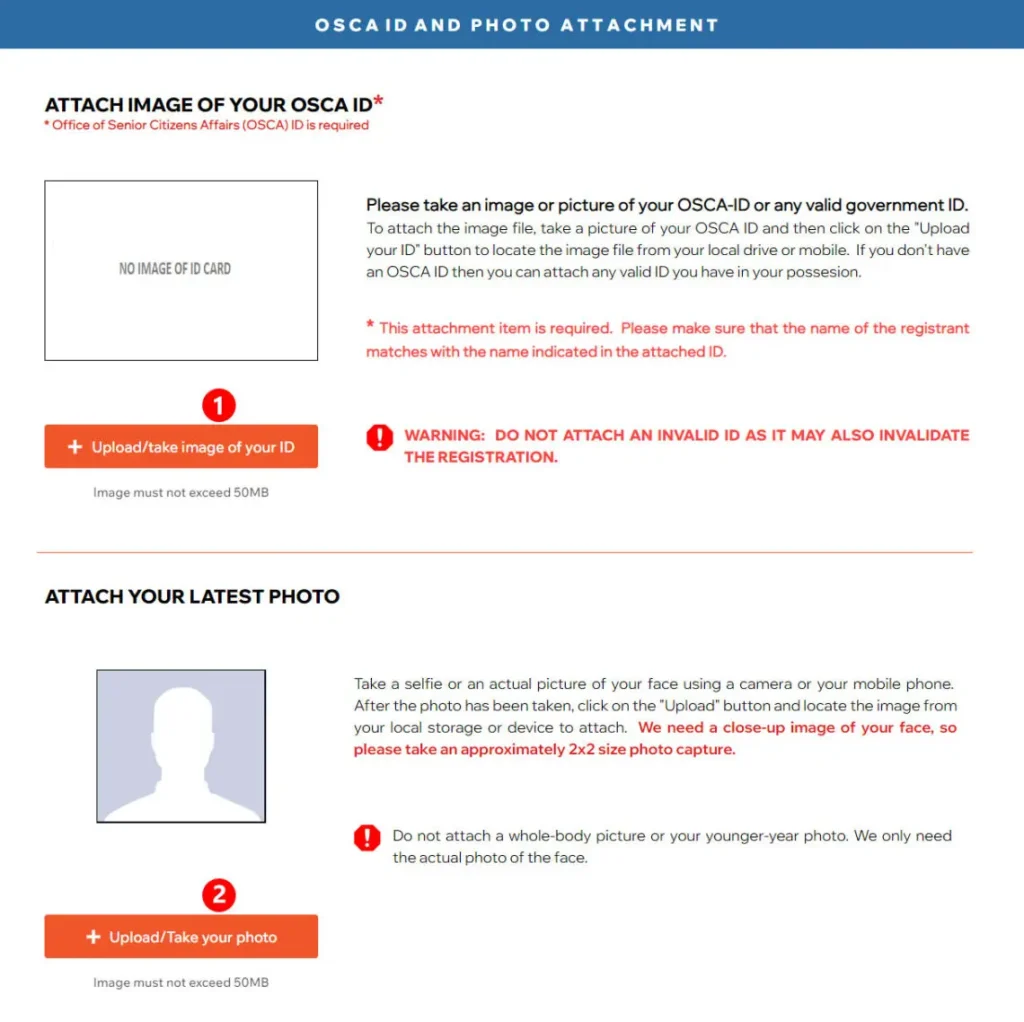
To upload the identification image:
- Prepare a clear photograph or image of the accepted ID.
- Click the Upload/take image of your ID option, if displayed.
- Select the image from your device or take a photograph using the available feature.
- Check that the information is readable and the image is complete.
- Confirm that the file meets the upload requirements shown on the website.
The instructions associated with this form have specified a maximum file size of 50 MB. However, check the current upload limit on the official website in case the requirements have changed.
The form may also offer an option to upload a recent photograph or selfie. If this field is optional, follow the instructions provided and upload an appropriate image only if you wish to do so.
Before submitting, make sure the uploaded document belongs to the correct applicant. Avoid sharing ID images through unofficial websites or public channels.
Section 8: Pass Key Number (PKN)
The Pass Key Number (PKN) is an additional security detail that may be used to access or verify the applicant’s registration record.
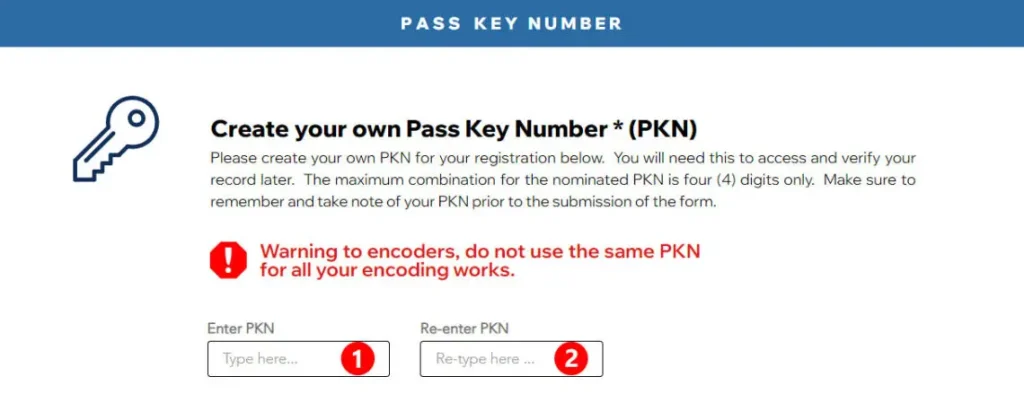
If the registration form asks you to create a four-digit PKN, follow these instructions:
- Choose a four-digit number that you can remember.
- Enter the number in the first PKN field.
- Re-enter the same number in the confirmation field.
- Check that both entries match.
- Keep the PKN in a safe place for future reference.
Important: Do not share the PKN publicly or use the same number for multiple applicants when registering several senior citizens. Each applicant should have their own unique number if the system requires one.
If you are helping a senior citizen complete the registration, explain why the PKN is needed and ensure that the applicant can safely retrieve it later.
Step 4: Review and Submit the Registration Form
After completing all the required sections, review the information before submitting the application.
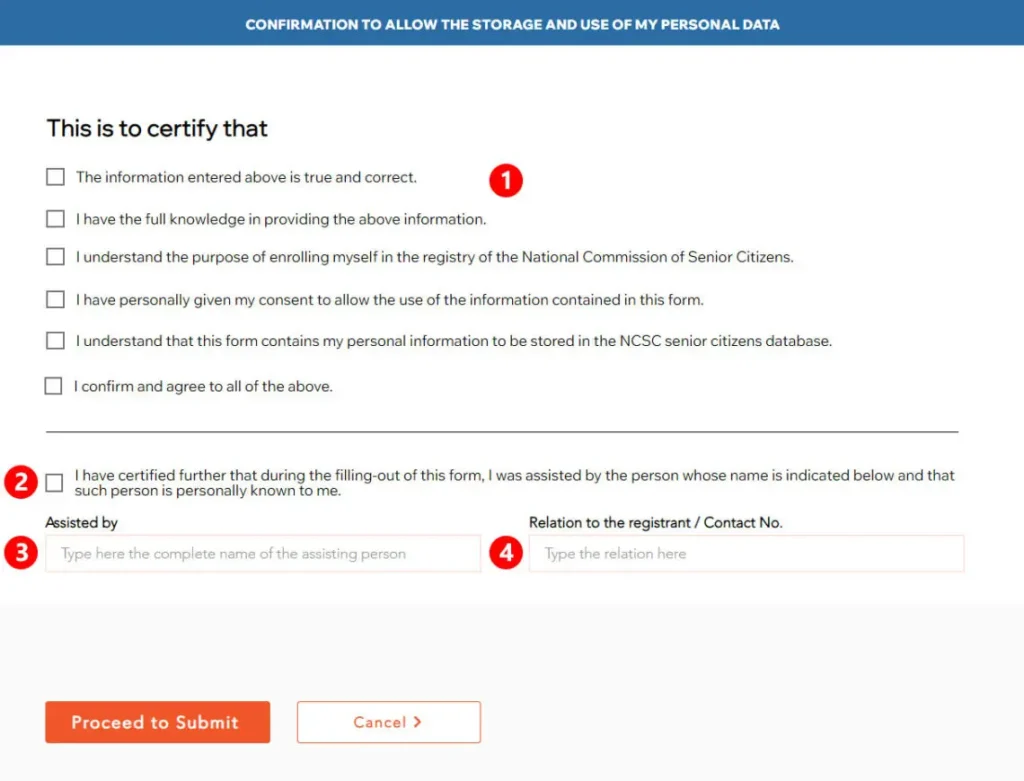
Check the following items:
- The applicant’s name and date of birth are correct.
- The residential address and contact details are accurate.
- All required fields have been completed.
- The identification image meets the website’s requirements.
- The PKN has been entered correctly, if required.
- Any optional information provided is accurate.
- The applicant has reviewed the applicable privacy notice and consent requirements.
The form may ask you to confirm that you understand and agree to the collection, storage, and use of personal information. Read the relevant statement before selecting the checkbox.
- If you are completing the form on behalf of a senior citizen, follow the instructions for identifying the assisting person. The form may request the person’s complete name, relationship to the applicant, and contact number.
- Once everything is ready, click Proceed to Submit, or use the equivalent submission button displayed on the official registration facility.
- Wait for the system to process your submission. If an error appears, follow the on-screen instructions and correct the relevant fields before trying again.
Step 5: Save Your Registration Reference Number
- After submitting the form, check whether the website displays a confirmation message or registration reference number.
- If your submission is successful and a Registration Reference Number (RRN) is provided, save it carefully. You may need this number when checking your registration record or status later.
Here is what you should keep for future reference:
- Registration Reference Number (RRN): Save the number assigned to your registration.
- Pass Key Number (PKN): Keep the security number you created, if applicable.
- Confirmation Details: Save any confirmation message or receipt provided by the system.
You may take a screenshot or write down the details and store them somewhere secure. Avoid publishing them online or sharing them with people you do not trust.
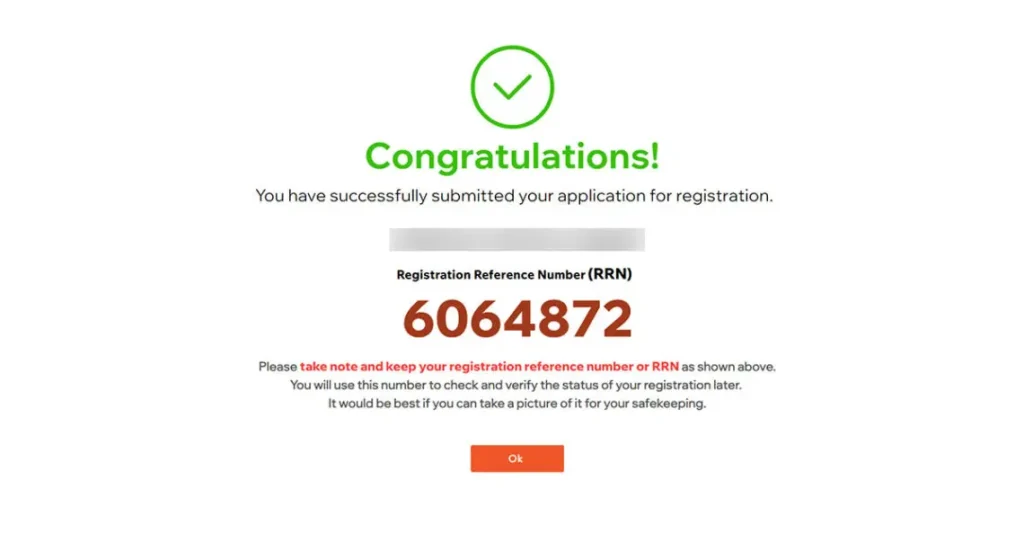
Remember that successfully submitting an online form does not necessarily mean that every registration detail has been verified or that you have automatically qualified for a pension or other benefit. Check the registration status and any additional instructions provided by the NCSC.
How to Verify Your NCSC Senior Citizen Registration Record
After submitting your Senior Citizen Data Form, you may want to check whether your registration record is available and what status the system displays.
The available verification methods and interface may change, so follow the current instructions on the official NCSC website.
Step 1: Reopen the Official NCSC Website
- Visit https://www.ncsc.gov.ph/ using your browser.
- Look for the registration verification facility. If a Verify Here! button is available, select it to open the relevant page.
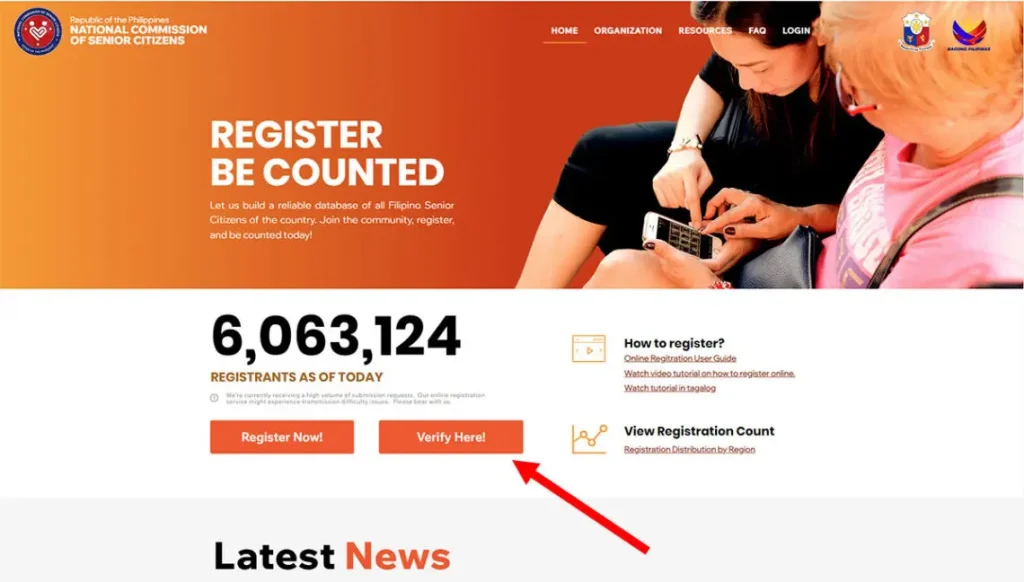
Make sure you are using the official website before entering your registration details or security information.
Step 2: Select a Verification Method
The registration facility described in this guide provides two possible methods for locating a record:
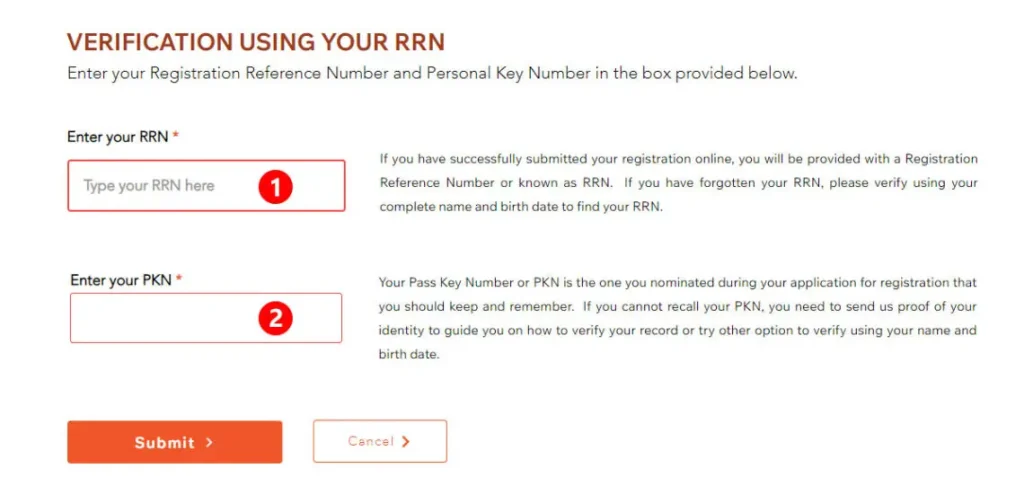
- Verify Using Registration Reference Number (RRN): Use this option if you have the reference number provided after registration.
- Verify Using Name and Birth Date: Use this option if the facility offers it and you do not have your RRN available.
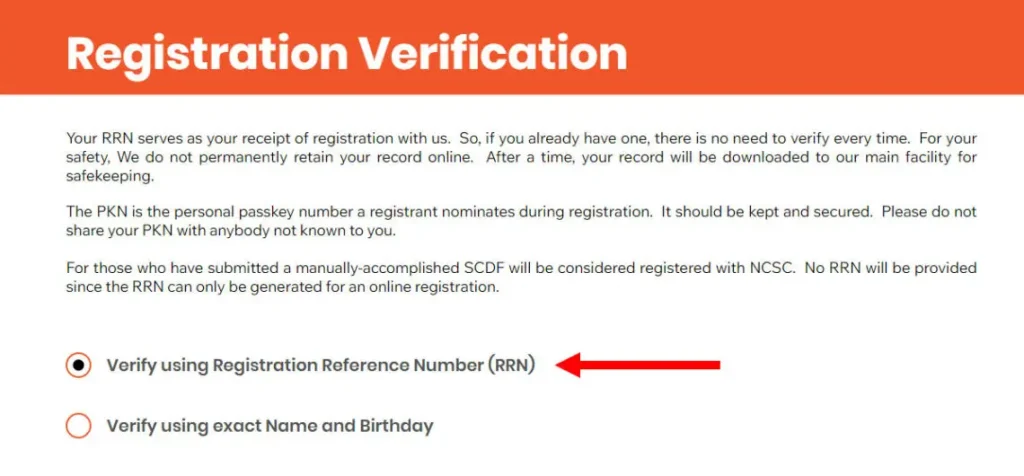
- Choose the method that matches the options currently displayed on the website.
- If the system provides different verification options, follow its current instructions instead.
Step 3: Enter the Required Verification Details
If you select verification by RRN, the system may ask you to provide the following:
- RRN: Enter the Registration Reference Number assigned to your submission.
- PKN: Enter the Pass Key Number created during registration, if required.
- Check both entries carefully before continuing. An incorrect reference number or PKN may prevent the system from locating your record.
- If you choose verification by name and birth date, enter the requested details exactly as they appear in your registration information.
- Once the required fields are complete, click Submit or the equivalent button displayed on the page.
- Never enter your registration details on an unofficial website claiming to provide NCSC verification services.
Step 4: Check Your Registration Status
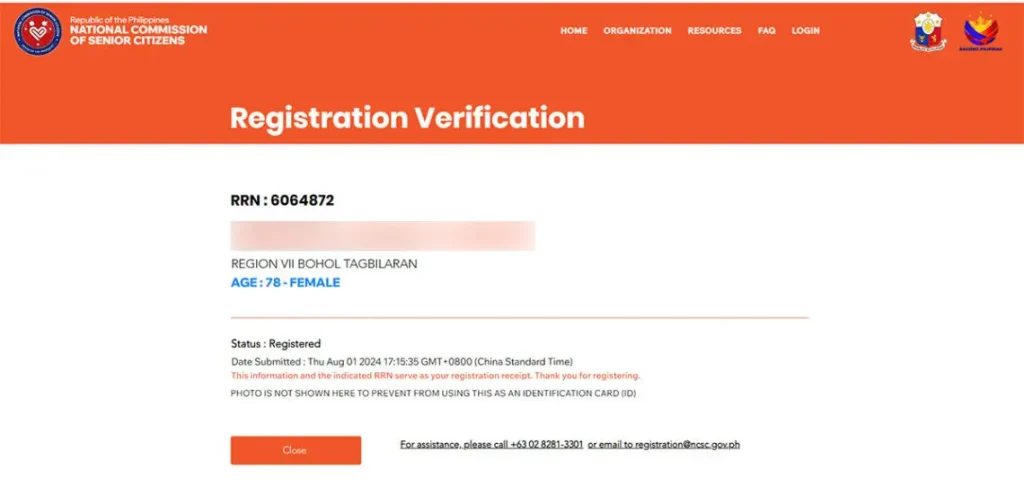
- If the information you entered matches an available record, the system may display the registration details and current status.
- Depending on the information made available by the facility, you may be able to view details such as the applicant’s name, address, age, or registration status.
- Read the result carefully and follow any additional instructions shown on the page.
- If the system cannot find your record, check that you entered the correct details. You can also try another verification method if one is available.
- If the problem continues, consult the official NCSC website or contact the relevant office for assistance.
What Happens If You Receive a Transmission Error?
Receiving a Transmission Error during NCSC senior citizen registration does not always mean that your registration has failed. This issue may occur because of a weak internet connection, temporary website problems, or heavy traffic on the registration system. Before submitting a new application, it is best to check the issue and follow a few simple troubleshooting steps.
NCSC Transmission Error Troubleshooting
| Problem or Situation | What to Do |
|---|---|
| Slow or unstable internet connection | Check your internet connection and make sure it is working properly before trying to submit the form again. |
| Submission button clicked multiple times | Avoid clicking the submit button repeatedly. Wait a moment to give the system enough time to process your request. |
| NCSC website experiencing heavy traffic | Wait a few minutes and try again when the website is more responsive. |
| Unsure whether registration was submitted | Check your registration status through the available official NCSC verification facility before submitting another form. |
| Registration needs to be submitted again | Keep your required personal information ready and follow the official instructions before attempting another submission. |
| Transmission Error continues to appear | Follow the official NCSC troubleshooting guidance or contact the relevant support service for assistance. |
Tip: If you receive a Transmission Error during NCSC online registration, do not immediately assume that your application has failed. First, check your internet connection, wait briefly, and try again when the website is working properly. If possible, verify your registration status before submitting another application to avoid potential duplicate records.
Common Mistakes to Avoid During Senior Citizen Registration
Completing the NCSC senior citizen registration Philippines process carefully can help you avoid common problems and protect your personal information. Most registration issues can be reduced by using the correct website, providing accurate details, and keeping your registration information safe. Here are some important mistakes to avoid when registering.
1. Using an Unofficial Website
Always make sure you are using the official NCSC website before entering your personal information. The NCSC has issued warnings about phishing websites that may target senior citizens and attempt to collect sensitive data.
- Check the website address carefully before entering personal details.
- Use the official NCSC registration facility.
- Avoid unofficial websites or individuals claiming to provide registration services without proper authorization.
2. Guessing Information
Providing incorrect information can create problems during the registration process. Instead of guessing an answer to complete a required field, use reliable records or follow the instructions provided on the form.
- Enter information based on accurate records whenever possible.
- Do not guess health details or identification information.
- Select the Unknown option if it is available and appropriate for the question.
3. Losing the RRN
The RRN is an important registration reference that may be needed for future verification. If you receive an RRN after successfully registering, save it immediately so you can access it when required.
- Write down your RRN and keep it in a safe place.
- Take a screenshot or save a secure copy of your registration confirmation.
- Keep the reference details available for future use.
4. Forgetting the PKN
The PKN is another registration-related detail that may be needed to access or verify your record. Keeping it secure can help prevent difficulties when you need to check your registration information.
- Choose a PKN according to the official system’s instructions.
- Keep it private and do not share it unnecessarily.
- Store it in a secure place rather than relying on your memory alone.
5. Creating a Duplicate Registration Record
Sometimes, applicants experience technical errors or forget their registration details and assume they need to register again. However, these issues do not necessarily mean that the original registration was unsuccessful.
- Check whether your original registration was completed successfully.
- Use the available official verification facility before submitting another form.
- Follow NCSC instructions if you need to correct your information or complete the registration process again.
Tip: To make NCSC senior citizen online registration easier, double-check your information before submitting the form, save your registration references securely, and always follow the official guidelines. These simple precautions can help reduce avoidable errors and protect your personal information.
Who Can Register as a Senior Citizen?
In the Philippines, individuals who are 60 years old or above generally qualify as senior citizens. Before starting the NCSC senior citizen online registration process, make sure the applicant’s personal information is accurate and that the necessary identification details are available.
To make the registration process easier, applicants should prepare their information in advance and follow the instructions provided on the official NCSC website.
- The applicant should be 60 years old or older.
- Prepare accurate personal information and available identification documents.
- Keep any required supporting details ready before starting the online registration.
Information to Prepare Before Registration
Gathering the necessary information beforehand can help you complete the Senior Citizen Data Form (SCDF) more smoothly. Details such as the applicant’s full name, date of birth, and residential address should be checked carefully to avoid errors in the registration record.
Before starting, prepare the following information where applicable:
- Personal details: Full legal name, correct date of birth, and current residential address.
- Contact information: A working contact number and email address, if available and required.
- Identification details: OSCA ID or another government-issued ID accepted by the registration facility.
- Family information: Relevant details about family members and dependents, if requested.
- Health and financial information: Applicable details about medical needs, income, and living conditions, depending on the form’s requirements.
- Photograph or ID image: Prepare a clear image if the official registration facility requires an upload.
Some sections of the SCDF may be optional, while others must be completed before submission. Follow the instructions displayed on the official form and provide accurate information wherever required. Additional information may help the NCSC better understand the circumstances and needs of senior citizens.
Frequently Asked Questions (FAQs)
Conclusion
NCSC senior citizen online registration in the Philippines is an important process for collecting information about older adults and helping the government understand their needs and living conditions. By following the correct registration steps, preparing the required identification, and completing the Senior Citizen Data Form (SCDF) carefully, applicants can reduce common mistakes and make the process easier.
Before submitting your information, double-check all required fields and follow the instructions provided on the official NCSC website. After submission, keep your Registration Reference Number (RRN) and Pass Key Number (PKN) secure so you can use them for future verification if needed. If you encounter a transmission error or cannot find your registration record, check the available verification facility before submitting another application.
Whether you are registering yourself or helping an elderly family member, using the official registration facility and providing accurate information are essential. Always check the latest NCSC guidelines for updated requirements, verification procedures, and further instructions related to senior citizen registration in 2026.
Read more
- Child Birth Registration in the Philippines 2026
- PNP Payslip Online 2026: Complete Step-by-Step Guide to Check and Download Your Payslip
- PNP Payslip Online Login 2026: How to Check and Download Your Payslip
- One STI Student Portal Philippines 2026-2027: Complete Login, Grades, Schedule & Student Guide
- NBI Online Appointment & Clearance Renewal Guide 2026