eGov PH 2026: Registration, Login Download the Official eGov PH App & Government Services Guide
Important: This is an unofficial guide. This website is not affiliated with, endorsed by, or connected to the Department of Information and Communications Technology (DICT) or the eGov PH platform. To use official eGov PH services, please go through the official eGov PH website or the official eGov PH app.
Visit the Official eGov PH Website
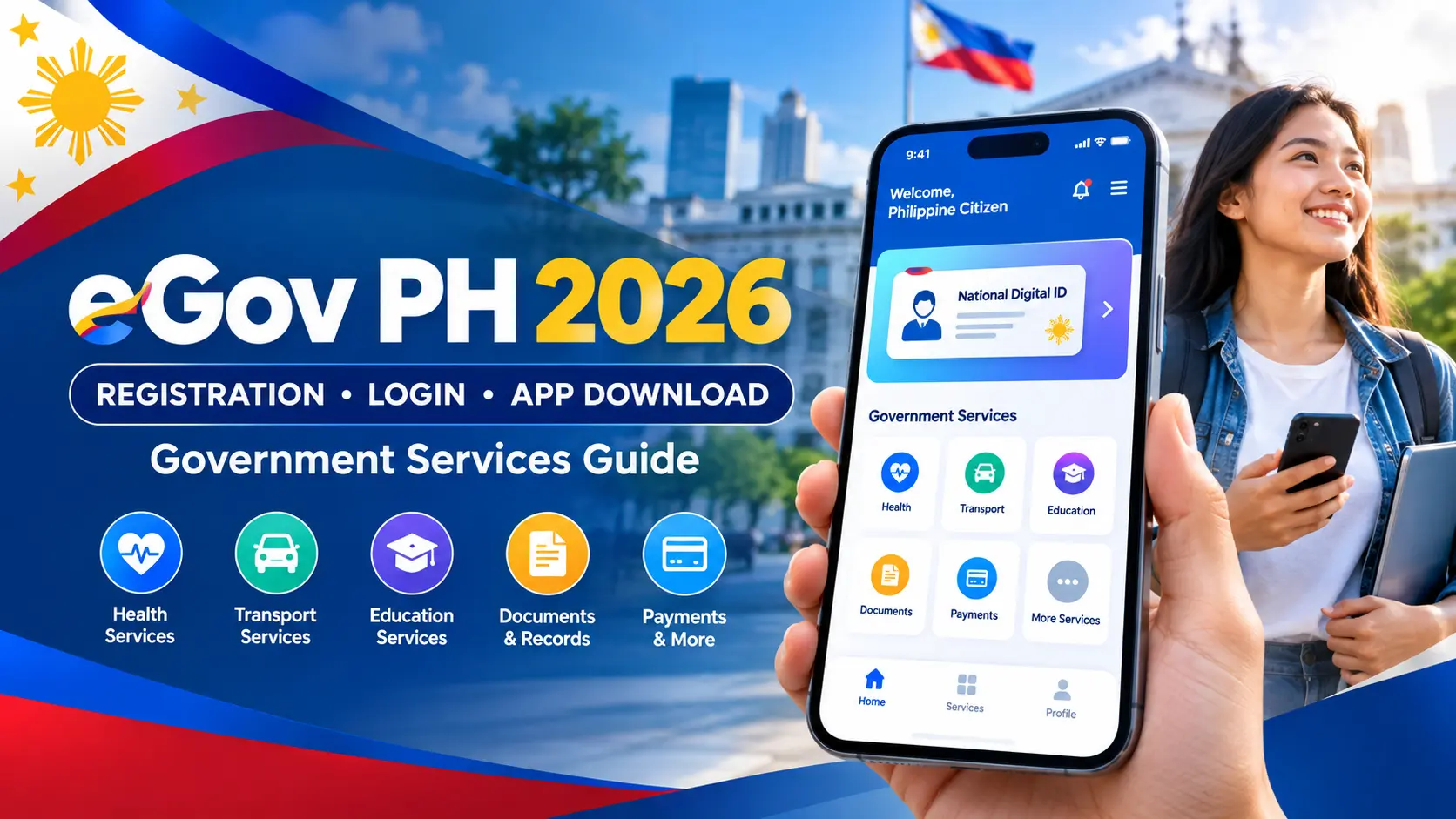
The eGov PH Super App, widely known as eGov PH, is the Philippine government’s official digital platform developed by the Department of Information and Communications Technology (DICT). It brings participating government services together in one convenient mobile application, helping Filipinos access essential public services without navigating multiple agency websites or making unnecessary visits to government offices.
As part of the Philippines’ digital transformation efforts, eGov PH provides a centralized way to access available digital services, manage relevant government information, and connect with participating agencies. Depending on service availability and eligibility, users can access features related to the Digital National ID, PhilHealth, SSS, eTravel declarations, and Local Government Unit (LGU) services. This guide explains how to download the official eGov PH app, register an account, log in, and navigate its key features to make everyday government transactions simpler and more convenient.
What Is eGov PH?
eGov PH is the official Philippine Government Super App developed by the Department of Information and Communications Technology (DICT) to bring multiple digital government services together in one convenient platform. It allows users to access available digital credentials, connect with participating government agencies, manage eligible online transactions, and receive important notifications without navigating multiple websites or applications.
Designed to make public services more accessible and efficient, eGov PH simplifies how Filipinos interact with government institutions through a centralized digital platform. As more government agencies, Local Government Units (LGUs), and public institutions integrate their services, the app continues to expand its range of features, helping users save time and access essential government services more conveniently.
eGov PH at a Glance
| Feature | Details |
|---|---|
| Platform Name | eGov PH Super App |
| Official Website | https://e.gov.ph/ |
| Developed By | Department of Information and Communications Technology (DICT) |
| Country | Philippines |
| Platform Category | Digital Government Services |
| Supported Devices | Android and iOS |
| Registration Fee | Free |
| Login and Verification | Available methods may vary by account and app version |
| Security Features | Account verification and supported device-security features |
Main Features of eGov PH
The eGov PH Super App brings participating Philippine government services together in one digital platform, making it easier for citizens to access public information and complete eligible online transactions. Instead of navigating multiple agency websites, users can explore available services through the app and follow the relevant procedures for each agency. Homepage.
Key features and services may include:
The availability of individual features may depend on the current app version, the participating agency, and the user’s eligibility. For accurate information, visit the official eGov PH website.
Requirements Before Registering
Before registering for an eGov PH account, prepare the necessary information and make sure your mobile device meets the app’s requirements. Having these details ready can help you complete the registration process more smoothly.
| Requirement | Purpose |
|---|---|
| Android smartphone or iPhone | Install and use the official eGov PH app |
| Active mobile number | Complete account registration and verification, where required |
| Valid email address | Provide contact information if requested |
| Stable internet connection | Access the app and complete online procedures |
| Valid government-issued ID | Support identity verification when required |
| Device camera | Capture identification documents or complete verification steps if prompted |
Important: The exact requirements may vary depending on the registration method and services you want to access. Follow the instructions displayed in the official app rather than relying on requirements listed on third-party websites.
Accepted Government IDs
Some eGov PH services may require identity verification using a government-issued identification document. The accepted documents can vary according to the specific service and verification process, so check the current instructions in the app before submitting your ID.
Depending on the service, potentially relevant Philippine identification documents include:
Before uploading your ID: Ensure the document is valid for the intended verification process, the details are readable, and the photograph is clear. Only submit documents through the official app or an authorized government website, and never share your OTP, PIN, or login credentials with another person.
How to Register for an eGov PH Account
Registering for an eGov PH account allows you to begin accessing the platform’s available digital government services. Follow the steps below and provide accurate information whenever it is requested during the registration process.
Step 1: Visit the Official eGov PH Website
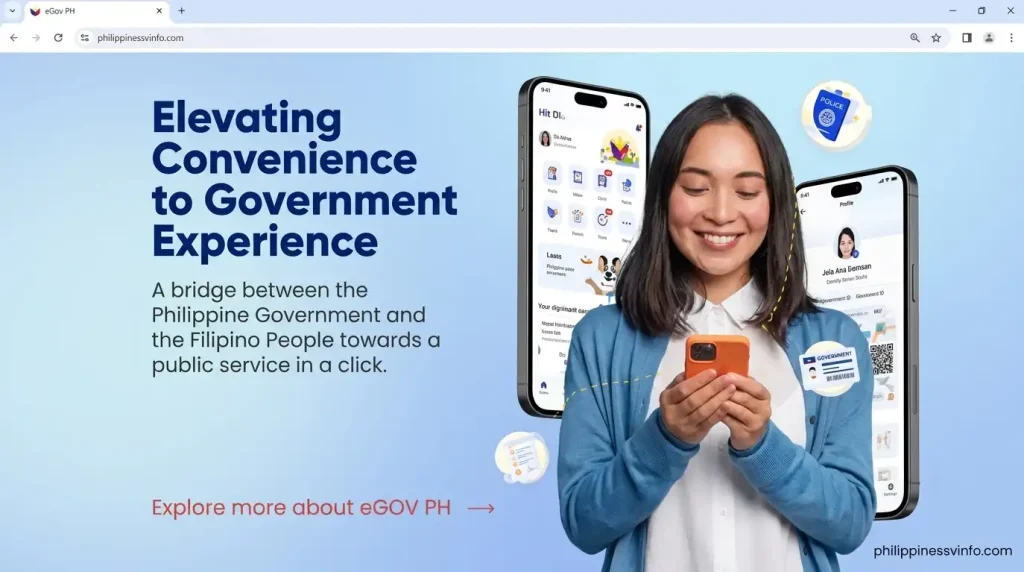
Open your preferred web browser and visit the official eGov PH website. You can use the website to learn about the platform and find the appropriate mobile application download options for Android and iPhone.
Always use official sources when accessing government services. Avoid unfamiliar websites or applications that request sensitive personal information without a clear and legitimate purpose.
Step 2: Enter Your Mobile Number
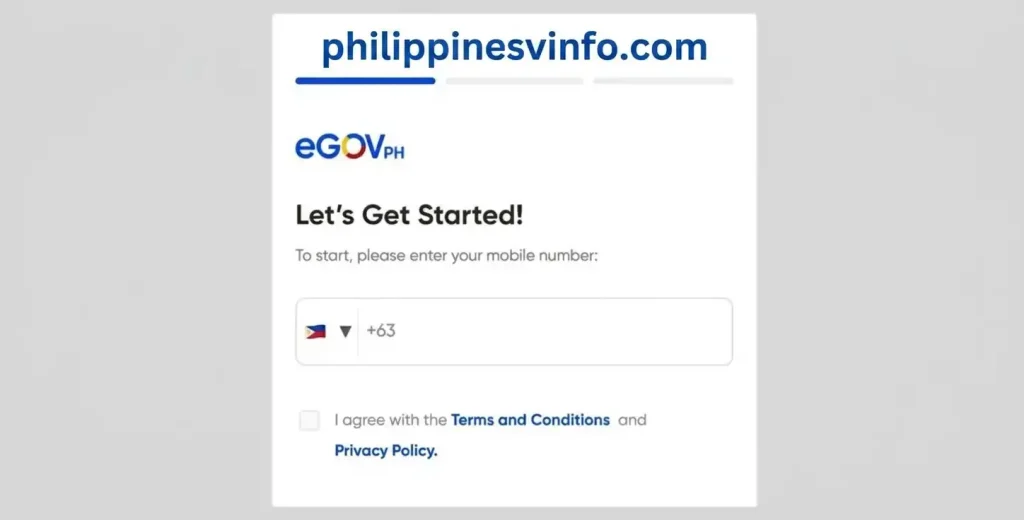
Enter your active Philippine mobile number when prompted during registration. Your number may be used for account verification, login authentication, security notifications, and account recovery, depending on the available features.
Make sure your mobile number is entered correctly and remains accessible so you can receive verification messages when required.
Step 3: Verify Your Mobile Number with OTP
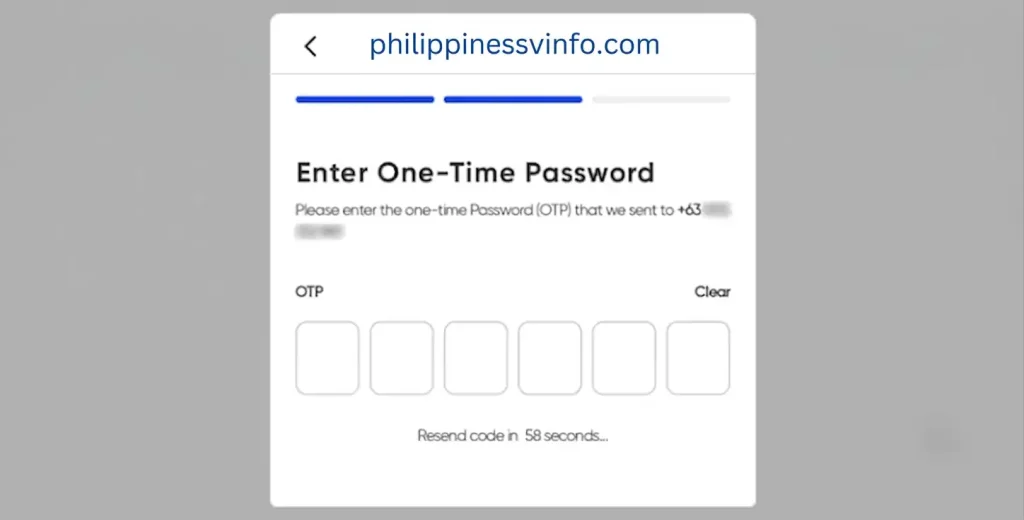
If prompted, a One-Time Password (OTP) will be sent to your registered mobile number through SMS. Enter the verification code in the designated field to continue.
If you do not receive the code or it expires, check your mobile signal and confirm that you entered the correct number. You can request another code if the application provides that option. Never share your OTP with anyone.
Step 4: Create a Secure PIN
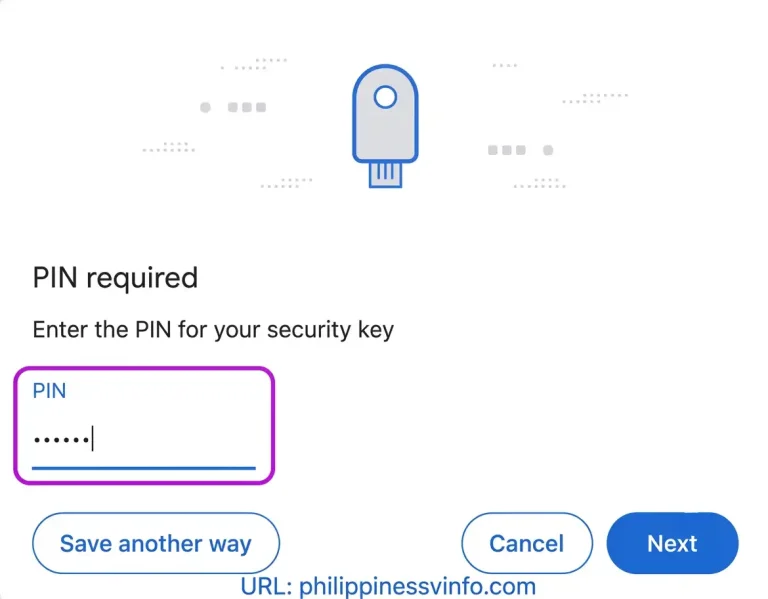
If the registration process asks you to create a security PIN, choose a code that is difficult for other people to guess. Avoid predictable combinations such as:
Keep your PIN private and do not share it with anyone. A unique code can help protect your account from unauthorized access.
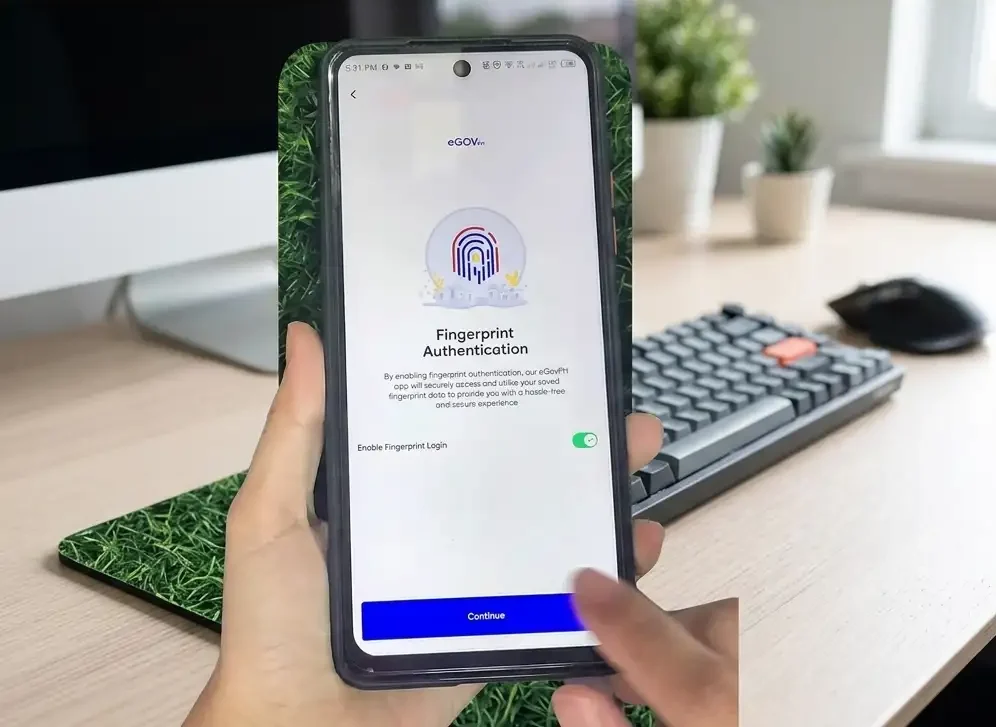
Step 5: Enable Biometric Login (Optional)
If your device and the application support biometric authentication, you may be able to enable fingerprint recognition or Face ID for convenient access.
Biometric login can make signing in easier while adding a layer of protection. Follow the on-screen instructions to enable this feature, if available, and keep your device’s security settings updated.
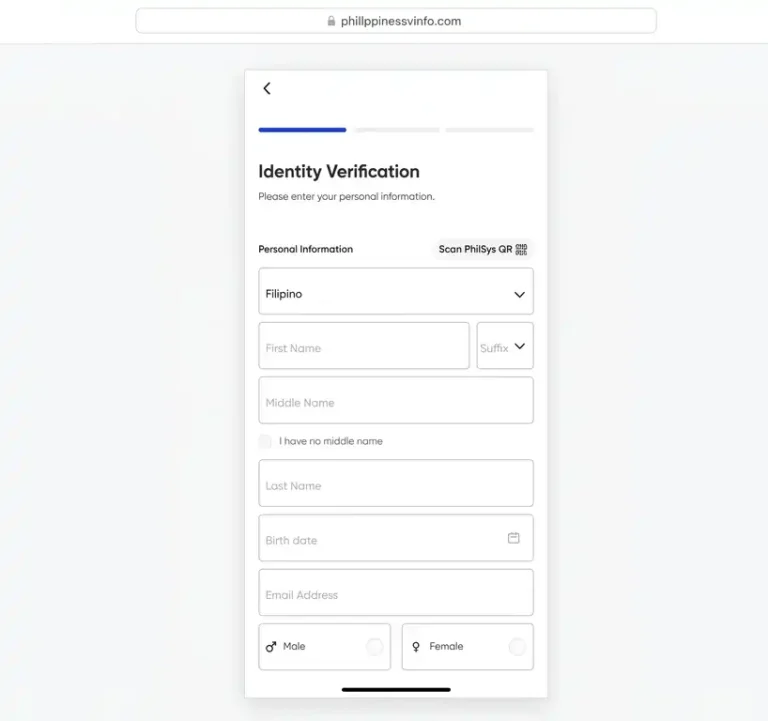
Step 6: Complete Your Personal Information
Enter the personal details requested by the application. Depending on the registration and verification process, these may include:
Review your information carefully before submitting it. Accurate details can help prevent verification delays and discrepancies when accessing eligible government services.
Step 7: Verify Your Email Address
If email verification is required, open the inbox associated with the email address you provided during registration. Look for the verification message and follow its instructions to confirm your address.
Check your spam or junk folder if the message does not appear. Once you complete the required registration and verification steps, follow the application’s instructions to sign in and explore the available eGov PH services.
How to Download the Official eGov PH App
Downloading the eGov PH Super App is the first step toward accessing participating Philippine government services through your mobile device. The app is available for Android and iPhone users. For your security, download it only from official sources and verify the publisher before installing it.
Step 1: Visit the Official eGov PH Website
Open your web browser and visit the official eGov PH website. From there, look for the available mobile app download options for your device. Using official sources helps you avoid unofficial applications that may put your personal information at risk.
Step 2: Download the App from Your App Store
Open the Google Play Store on your Android device or the Apple App Store on your iPhone. Search for eGov PH and check the application’s publisher before downloading it. Make sure you select the official application associated with the Department of Information and Communications Technology (DICT).
Step 3: Install the Application
Tap Install on Android or Get on iPhone to begin downloading the application. Wait for the installation to finish. The time required depends on your internet connection and device performance.
Step 4: Launch the eGov PH App
After installation, open the application and follow the instructions displayed on the screen.
Why Identity Verification Is Important
Creating an eGov PH account is the first step toward accessing digital government services, while identity verification may be required to use certain features and transactions. This process helps confirm your identity and protects your account when accessing participating government agencies and their online services.
Identity verification helps to:
Once verification is completed, you may gain access to additional features, depending on your account status and the requirements of each government service.
How to Verify Your Identity
Follow the instructions provided in the official eGov PH application to complete identity verification, if required for your account or the service you want to access.
Step 1: Log In to Your eGov PH Account
Open the official eGov PH application and sign in using your registered account details. Depending on the available login options, you may be asked to enter your mobile number, security PIN, or use an enabled biometric authentication method.
Step 2: Access Your Profile
After logging in, open your profile or account settings. Look for an identity verification option if one is available. Review your current account status and follow the instructions displayed in the application.
Step 3: Select Your Government-Issued ID
If the application requests identity verification, select an identification document from the supported options. Depending on the specific verification service, accepted documents may include:
Note: Accepted IDs can vary by service. Check the options displayed in the official application before proceeding.
Step 4: Scan Your Identification Card
If document scanning is required, use your smartphone camera to capture your identification document according to the on-screen instructions.
For a clearer image:
The application may use automated document processing to read the information on your ID.
Step 5: Complete the Facial Verification Check
Some identity verification processes may require a facial scan or another method of confirming that you are the person associated with the submitted identification document.
If prompted, follow the instructions on the screen. Use adequate lighting, position your face within the designated frame, and remove accessories that obstruct your facial features when necessary.
Step 6: Review Your Personal Information
Review the information displayed after submitting your identification details. Depending on the verification process, this may include:
Make sure the information is accurate before continuing. If you notice an error, follow the application’s instructions for correcting it.
Step 7: Submit Your Verification Request
After checking your details, submit the verification request if the application provides this option. Follow any additional instructions and monitor your account for a status update.
Verification times may vary. Approval is not necessarily immediate, and processing times depend on the applicable verification system and requirements. Check the status shown in the app rather than assuming that approval will take a specific number of hours.
Tips for Successful Identity Verification
These practical steps can help reduce common problems during document submission:
Understanding the eGov PH Dashboard
The eGov PH dashboard serves as the main navigation area for accessing available digital government services. After signing in, users can explore supported features, review relevant account information, and find services provided by participating agencies through the application.
The available sections and their names may change as the platform is updated. The following overview explains common types of features users may encounter.
Home Dashboard
The Home Dashboard is the main screen users see after accessing their account. Depending on the app version and account status, it may display shortcuts to available services, account information, and government announcements.
Common dashboard elements may include:
These shortcuts help users navigate available features without searching through multiple menus.
Services Section
The Services section helps users locate participating government agencies and their digital services. Available options depend on the agencies integrated into the platform and the services currently offered.
Categories may include:
Not every category or service will necessarily be available to every user. Check the application for the latest options and eligibility requirements.
Wallet (My Cards)
If a Wallet or My Cards feature is available in your version of the application, it may provide access to supported digital identification documents or credentials.
Depending on the platform’s current integrations, these may include a Digital National ID or other authorised digital credentials. The documents available will depend on the specific service and the user’s eligibility.
A digital credential should only be used where it is officially accepted. Its availability in the app does not automatically mean that every government office or private organisation will accept it for every transaction.
Notifications
The Notifications section helps users stay informed about relevant account activity and announcements. Depending on the services being used, notifications may include:
Check your notifications regularly for updates on active transactions. For important deadlines or official requirements, confirm the information with the relevant government agency when necessary.
Government Services Available Through eGov PH
One of the main advantages of the eGov PH Super App is its goal of bringing participating Philippine government services together in a single digital platform. Instead of navigating multiple agency websites, users can explore supported services through one application, making it easier to find government information and complete eligible online transactions.
Digital National ID
Eligible users may access digital identity services associated with the Philippine Identification System (PhilSys) through supported government platforms. The Digital National ID can help users establish their identity for transactions where this form of identification is accepted.
Key benefits include:
eTravel Services
The eTravel system supports applicable travel declaration requirements for international travellers entering or leaving the Philippines. Where an eTravel service is available through an official government platform, travellers can follow the relevant instructions to submit the required information.
Depending on current requirements, travel-related tasks may include:
Travellers should check the latest official eTravel requirements before departure, as procedures and eligibility may change.
PhilHealth Services
PhilHealth provides health insurance services for eligible members in the Philippines. Where integration is available, eGov PH users may be able to access selected PhilHealth-related features through the app.
Depending on the available integration, these services may include:
The availability of individual records and transactions depends on the current integration and the member’s account status.
SSS Services
The Social Security System (SSS) administers social security benefits and related services for eligible members in the Philippines. Through supported digital integrations, users may be able to access selected SSS information or navigate to relevant services.
Potential services may include:
For detailed contribution statements, loan applications, or benefit transactions, users should follow the official SSS procedures applicable to their accounts.
GSIS Services
The Government Service Insurance System (GSIS) provides social insurance and related benefits to eligible government employees and members. Where supported by the current eGov PH integration, users may be able to access selected GSIS information or services.
These may include:
Specific features depend on the available integration and the user’s eligibility.
Local Government Unit (LGU) Services
Participating Local Government Units (LGUs) may use digital platforms to provide residents with easier access to local government information and transactions. The services available through eGov PH can differ from one city or municipality to another.
Depending on the participating LGU, digital services may include:
- Business permit-related services
- Local tax information or payment services
- Civil registry service requests
- Community announcements
- Other local government transactions
Note: Not every LGU offers the same features. Check the services available for your city or municipality before starting a transaction.
DOLE and PhilJobNet Services
The Department of Labor and Employment (DOLE) supports employment initiatives and labour-related services in the Philippines. PhilJobNet is an employment facilitation platform that helps job seekers explore job opportunities and connect with employers.
Depending on the available integrations, employment-related services may include:
Availability within eGov PH may vary, so users should consult the relevant official employment platform for current listings and application instructions.
SIM Registration Information
SIM registration requirements in the Philippines are governed by applicable telecommunications regulations. If eGov PH or a participating service provides a SIM-related feature, users should follow its instructions to review the information available to them.
Before making changes to a registered SIM or relying on displayed account details, verify the information with your telecommunications provider or the relevant official service.
eGov PH Common Problems and Solutions
Although eGov PH aims to simplify access to government services, users may occasionally encounter registration errors, login difficulties, verification delays, or problems opening integrated agency services. Checking your connection, reviewing your account details, and updating the application can help resolve many common technical issues.
| Problem | Possible Cause | Recommended Solution |
|---|---|---|
| OTP not received | SMS delays or network congestion | Check your mobile signal, wait briefly, and request another OTP if the option is available. |
| Invalid mobile number | Incorrect or unsupported number format | Check the registered number and enter it in the format requested by the app. |
| Facial verification failed | Poor lighting or incorrect face positioning | Improve the lighting, position your face within the frame, and repeat the process. |
| ID scan unreadable | Blurry image, glare, or damaged document | Retake the photograph in good lighting and ensure all required details are visible. |
| Email verification not received | Delivery delay or spam filtering | Check your Spam or Junk folder and request another verification email if supported. |
| Login failed | Incorrect PIN or authentication problem | Check your credentials and follow the app’s available account recovery instructions. |
| App keeps crashing | Outdated software or temporary device issue | Update the app, restart your device, and clear the app cache if appropriate. |
| Agency service unavailable | Maintenance or temporary agency outage | Try again later and check the relevant agency’s official announcements. |
| Verification pending | Identity checks still in progress | Review the displayed status and follow any instructions provided by the application. |
| Slow app performance | Weak internet connection or device limitations | Switch to a more stable connection and close unnecessary background applications. |
Resolution times vary depending on the cause of the problem. If an issue continues after troubleshooting, use the official support channel for the app or the government agency responsible for the affected service.
Security Tips for Using eGov PH Safely
Because eGov PH may provide access to personal information and government services, protecting your account is essential. Good security practices can reduce the risk of unauthorised access, identity misuse, and exposure of sensitive information.
Best Practices for Account Security
Security reminder: Never provide your password, PIN, or OTP to someone claiming they can verify your account on your behalf. Use the official application and authorised government channels for all sensitive transactions.
Benefits of Using eGov PH
The eGov PH Super App is designed to make government services more accessible by bringing supported digital features together in one place. For users who regularly interact with participating agencies, a centralised application can reduce the effort involved in finding information and navigating different online services.
Key Benefits
The actual benefits depend on the services available to your account, the participating government agencies, and whether the transaction can be completed digitally. Some services may still require additional documentation, separate agency authentication, or an in-person visit.
Limitations of eGov PH
Although the eGov PH Super App aims to simplify access to Philippine government services, users should understand that not every government transaction is available through the platform. Service availability depends on participating agencies, account verification requirements, and the application’s current features.
Current Limitations
eGov PH vs. Traditional Government Services
The eGov PH Super App offers a digital alternative to many conventional government transactions. By providing access to participating agencies through a centralised platform, it can help users reduce unnecessary travel and simplify routine administrative tasks. However, some services continue to require traditional office visits.
| Feature | eGov PH | Traditional Government Services |
|---|---|---|
| Access Availability | Many digital services can be accessed outside office hours | Usually limited to office operating hours |
| Registration Process | Online registration where supported | May require in-person registration |
| Identity Verification | Digital verification where available | Manual document checking or in-person verification |
| Waiting Time | May reduce waiting for eligible online transactions | Queues may occur at government offices |
| Digital National ID | Access through supported official features | Physical ID or another accepted identification method |
| Government Notifications | Digital notifications where supported | May require checking notices or contacting an office |
| Multi-Agency Access | Participating services available through one platform | Separate websites or office visits may be necessary |
| Travel Requirement | Not necessary for many online transactions | Often required for in-person services |
| Document Management | Access to supported digital documents | Physical documents or separate agency records may be needed |
| Overall Convenience | Convenient for supported online services | Useful when physical documents or personal assistance are required |
The best option depends on the transaction. eGov PH can make eligible digital services more convenient, while government offices remain important for procedures that require physical documents, additional verification, or direct assistance.
Best Practices for a Better eGov PH Experience
Following a few simple recommendations can help you access available services more smoothly while protecting your personal information.
Recommended Best Practices
Frequently Asked Questions (FAQs)
Conclusion
The eGov PH Super App supports the Philippines’ digital transformation by bringing participating government services together in one convenient platform. From account registration and identity verification to accessing supported Digital National ID features, exploring agency services, and checking available government information, the app can simplify many everyday transactions and reduce the need for unnecessary office visits.
Whether you are registering for the first time or using an existing account, accurate personal information, proper identity verification, and good security practices can help you make the most of the platform. As participating agencies expand their digital offerings, the services available through eGov PH may continue to evolve. For your protection, always use the official eGov PH website and authorised mobile application, and check the relevant government agency’s instructions before completing important transactions.
Read more
- Child Birth Registration in the Philippines 2026
- PNP Payslip Online 2026: Complete Step-by-Step Guide to Check and Download Your Payslip
- PNP Payslip Online Login 2026: How to Check and Download Your Payslip
- One STI Student Portal Philippines 2026-2027: Complete Login, Grades, Schedule & Student Guide
- NBI Online Appointment & Clearance Renewal Guide 2026